Connections
A Connection links Zynk Insights to one of your business systems. The Connections page lists every Connection in your account, and is where an admin adds demo data.
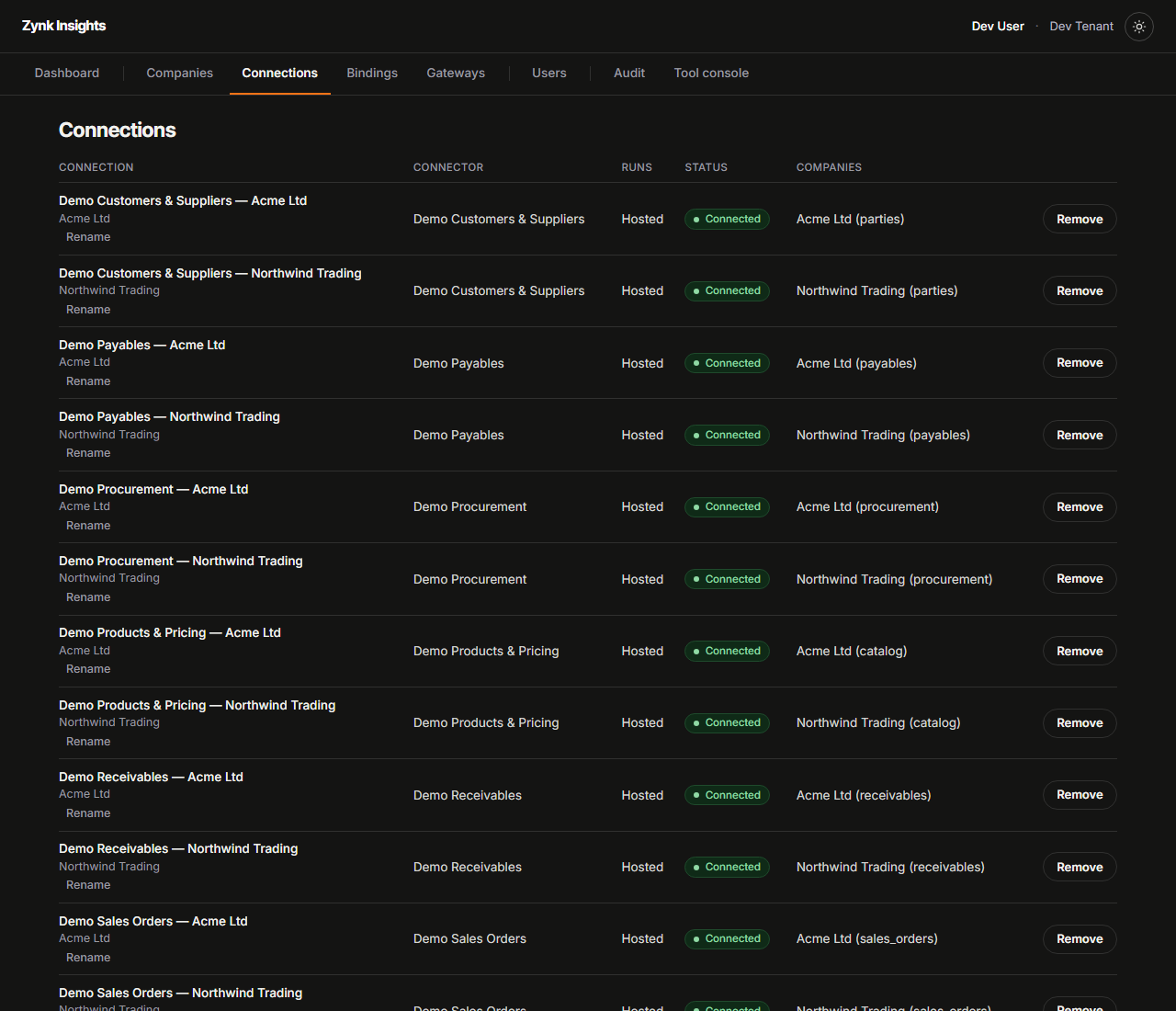
Connection List
- Connection — the Connection name and the source it reads from. Press Rename to change the name.
- Connector — the type of system, for example Sage 50.
- Runs — Hosted (in the Zynk cloud) or Desktop gateway (on your own machine).
- Status:
- Connected — working normally.
- Needs reauth — the system needs you to sign in again. Press Reconnect.
- Revoked — access has been withdrawn.
- Error — the last attempt to read data failed. See Troubleshooting.
- Offline — the desktop gateway serving this Connection isn't connected.
- Companies — the Companies and tool groups this Connection answers. If it isn't bound to any Company yet you'll see Not bound · Bind.
Connecting Sage 50
Sage 50 isn't in the cloud, so it's connected from the Zynk Insights Gateway desktop app on the machine that runs Sage 50. Once it's configured there, the Connection appears on this page automatically. See Connecting Sage 50.
Trying Zynk Insights with Demo Data
Demo systems let you try Zynk Insights, and your AI assistant, without connecting real data. Each demo connection generates realistic sample figures.
- Under Demo systems, choose a demo connector:
- Demo Customers & Suppliers
- Demo Products & Pricing
- Demo Receivables
- Demo Payables
- Demo Sales Orders
- Demo Procurement
- Demo Warehouse
- Choose an existing Company, or New company… and type a name.
- Press Add demo connection.
Tip
Add several demo connections to the same Company — they share their sample data, so for example the products in Demo Receivables' sales lines match the stock in Demo Warehouse.
Press Remove on a demo connection to delete it. A Company created for demo data is removed too once nothing else is bound to it.
Deleting a Connection
Press Delete to remove a Connection. You can only delete a Connection that isn't bound to any Company — unbind it on the Bindings page first.