Users & Grants
The Users page lists everyone in your account. Admins use it to change roles and to grant each person access to Companies.
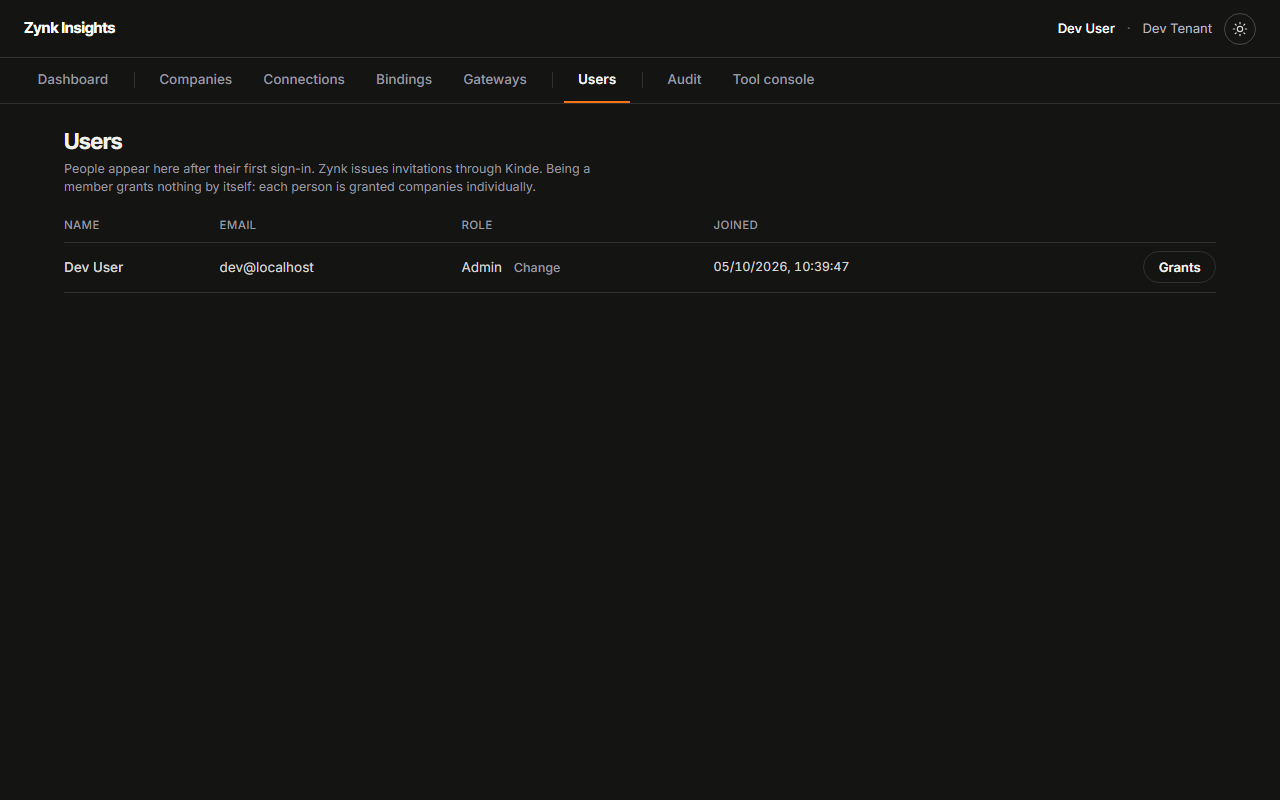
People appear here after their first sign-in. See Signing In for inviting colleagues.
User List
- Name and Email.
- Role — Admin or Member. Press Change to switch role, then Save.
- Joined — when they first signed in.
- Grants — opens the person's grants.
Note
An account must always have at least one Admin. To change the last Admin to a Member, make someone else an Admin first.
Admins and Members
- Admins can manage Companies, Connections, Bindings, Gateways and Users, and enrol desktop gateways.
- Members can view the portal and use the Tool Console, but can't change anything.
Whatever their role, people can only query the Companies they have been granted. When a new Company is created, everyone who is an Admin at that moment is granted it automatically. Someone made an Admin later needs granting existing Companies like anyone else.
Granting Access
Being a Member doesn't let you see anything by itself — each person is granted Companies individually.
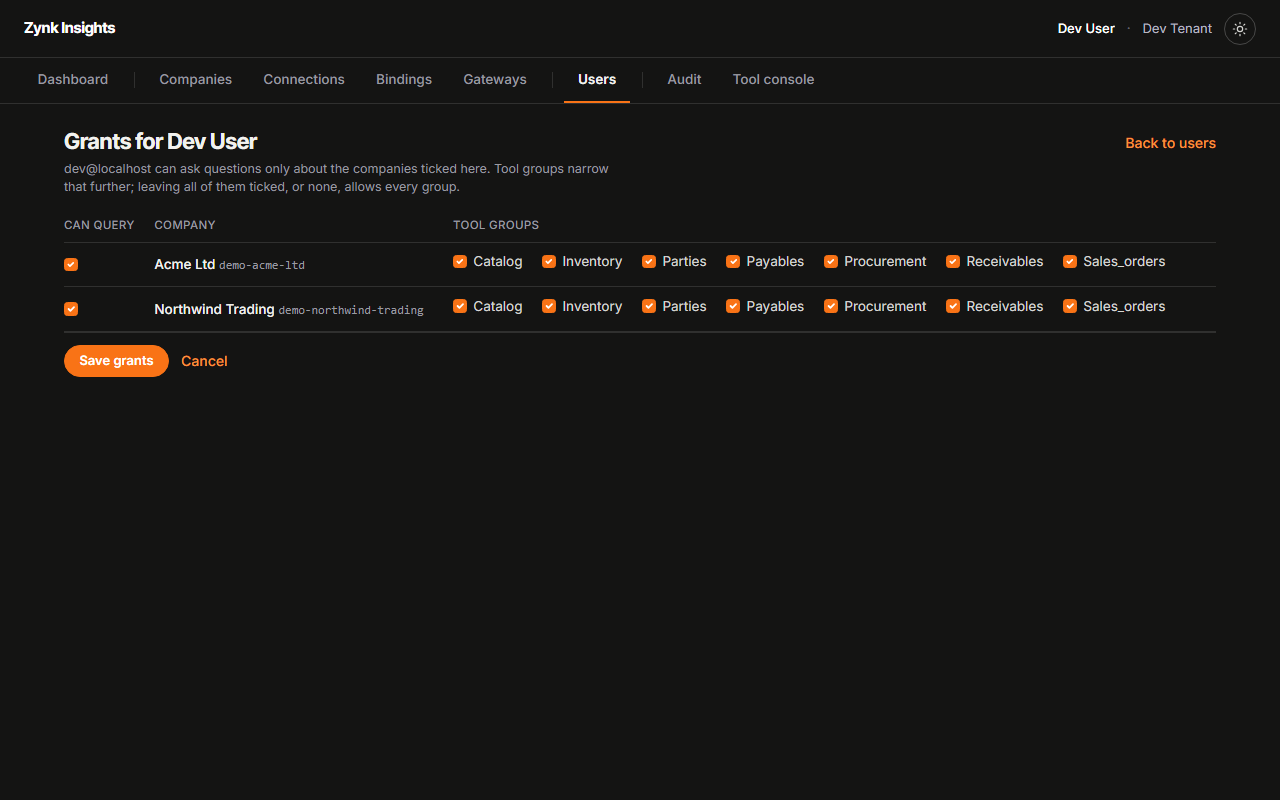
- On the Users page, press Grants next to the person.
- Tick Can query for each Company they should be able to ask about.
- Optionally, narrow it down using the Tool groups ticks — for example tick only Inventory and Catalog for someone in the warehouse. Leaving all of them ticked, or none, allows every tool group.
- Press Save grants.
The change applies to the person's AI assistant straight away. They may need to refresh or reconnect the connector in their assistant to see the updated list of tools.