Tool Console
The Tool console runs the same tools an AI assistant would, as you, through the same grants and audit trail. It's useful for checking what a question will return before asking it in Claude, or for checking a Connection is working.
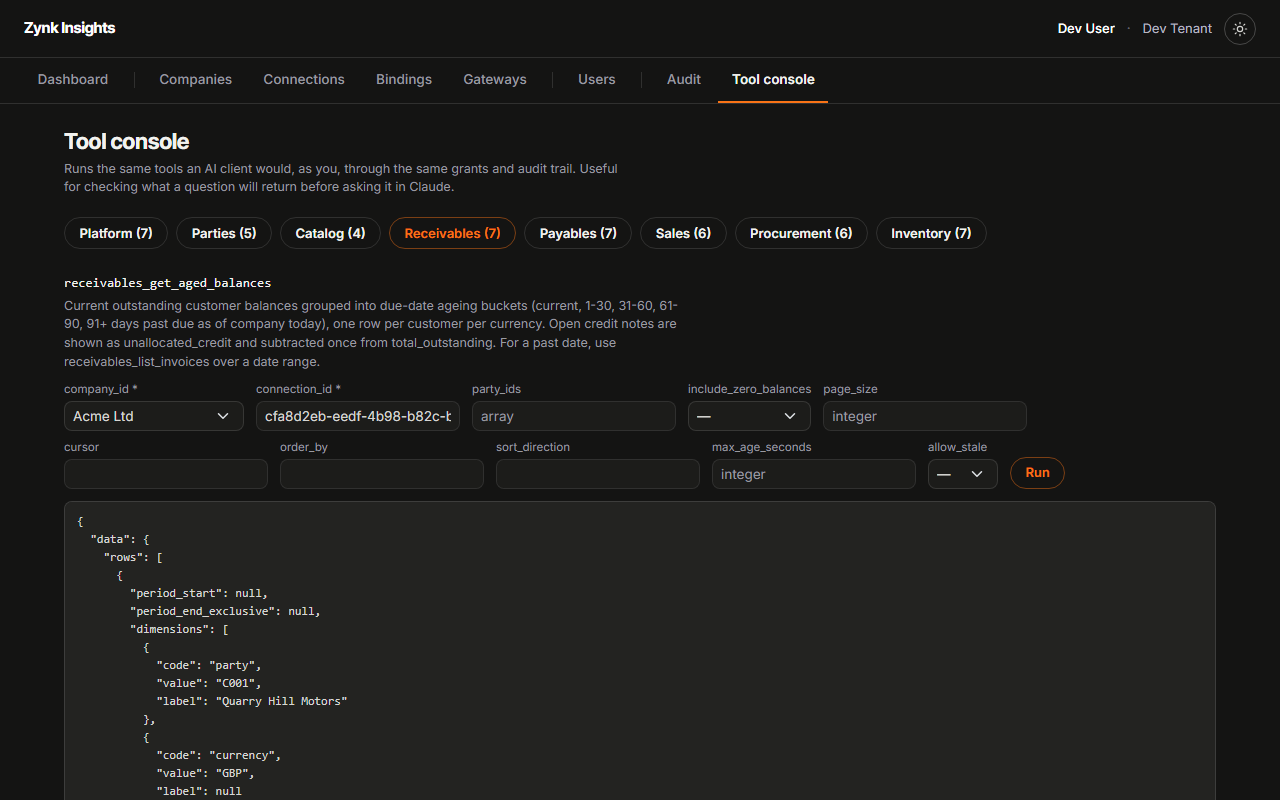
Running a Tool
- Choose a tool group tab, for example Receivables (7). The number shows how many tools are in the group.
- Find the tool you want. Each one has a short description of what it returns.
- Fill in the fields. Fields marked with * are required:
- company_id — choose a Company from Choose a company….
- connection_id — some tools also need the Connection's ID. Run platform_list_connections on the Platform tab to find it.
- Other fields are optional filters, such as dates or a page size.
- Press Run.
The result appears below the tool as JSON — the same data your AI assistant receives.
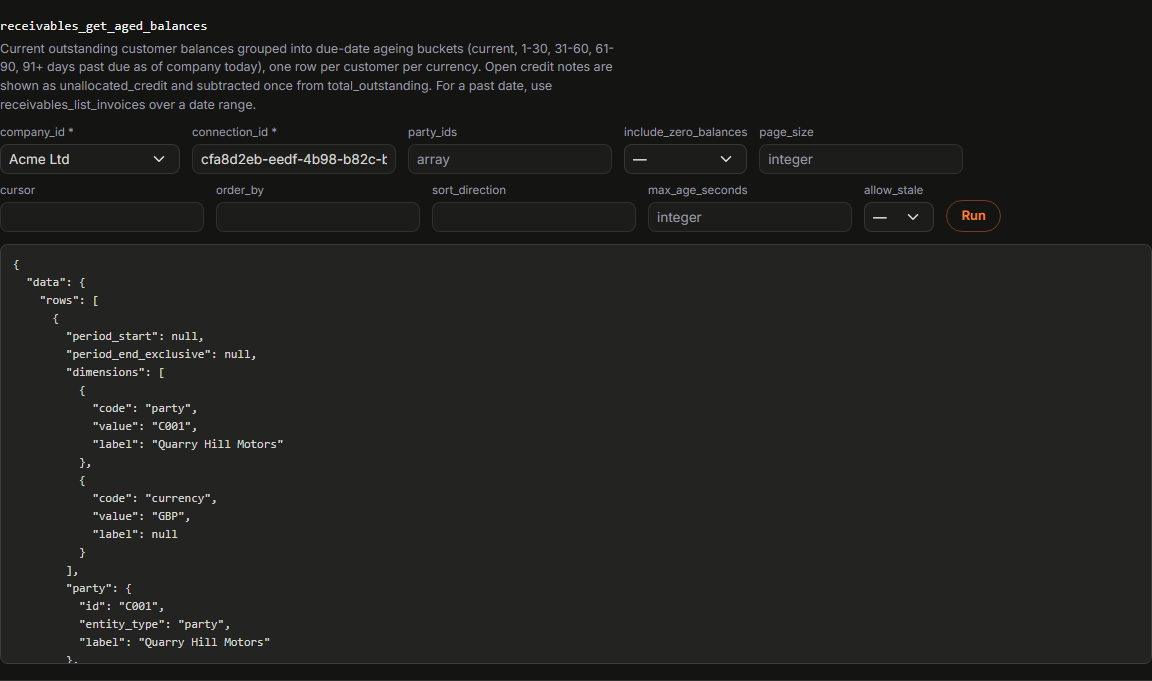
Reading the Result
Every result has three parts:
- data — the answer itself.
- meta — information about the answer: where it came from, how fresh it is, which period it covers, and any warnings. Quote the request_id if you contact support.
- error — empty on success. If the call failed, it explains why, and often suggests what to do next. See Error Codes.
Note
Calls made from the Tool console appear on the Audit page and count towards your plan's monthly tool calls, the same as calls from an AI assistant. Platform tools and failed calls don't count. See Plans & Usage.