Connecting Sage 50
Once the gateway is enrolled, you connect each Sage 50 company from the Zynk Insights Gateway desktop app.
Before You Start
- Sage 50 Accounts (UK) v33 or later must be installed on this machine, with its 64-bit ODBC driver.
- You'll need a Sage 50 username and password. The default username is MANAGER.
- Any Sage 50 user will do, as long as it can access the areas of Sage 50 you want to ask about — for example customers, suppliers, products, invoicing, sales orders and purchase orders. Zynk Insights can only see what that user can see. Access rights are set in Sage 50 under Settings → Access Rights.
Adding the Connection
- Open Zynk Insights Gateway from the Start menu.
- Press New.
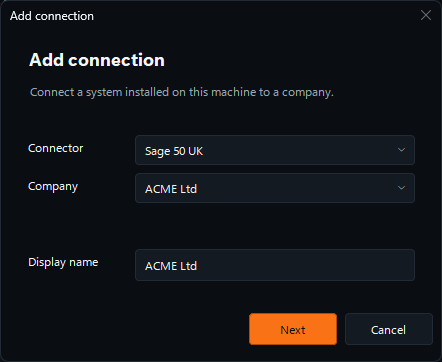
- In the Add connection window, choose Sage 50 UK as the Connector.
- Choose the Sage 50 company to connect as the Company.
- Check the Display name. It's filled in from the Sage 50 company name, and you can change it.
- Press Next. The connection's settings window opens.
Connection Settings
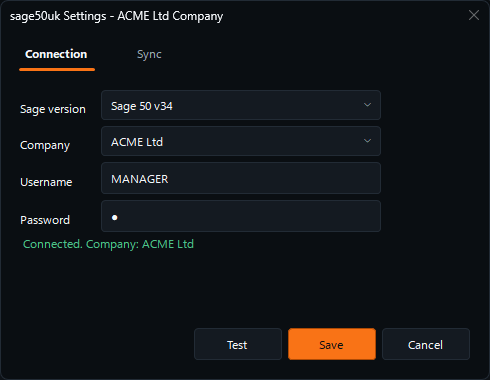
On the Connection tab:
- Choose your Sage version, for example Sage 50 v34.
- Choose the Company.
- Enter the Sage Username and Password.
- Press Test. You should see Connected. Company: … with your Sage company name.
- Press Save. You'll see Settings saved. Linked to company '…'.
The gateway now takes its first copy of your Sage 50 data, and the connection appears in the portal under Connections. A matching Company is created and bound automatically — remember to grant it to anyone who isn't an Admin.
Note
Your Sage 50 username and password are stored encrypted on this machine and never sent to Zynk.
If the Test Fails
| Message | What to do |
|---|---|
| No Sage 50 ODBC drivers found on this machine. | Install Sage 50, including its 64-bit ODBC driver, on this machine. |
| No companies found for Sage 50 vN. | Check the Sage version you chose, and that the company's data is reachable from this machine. |
| The 64-bit Sage 50 ODBC driver for vN is not installed. | Install or repair the 64-bit ODBC driver for that Sage version. |
| Sage rejected the username or password. | Check the Sage username and password. They're the ones you use to log in to Sage 50. |
| Timed out after 15 seconds. Is the Sage data path reachable? | Check the network drive or server holding your Sage data is available. |
Sync Settings
The gateway refreshes its local copy of your data every 5 minutes by default. To change it for one connection, open the Sync tab in the connection's settings:
- Leave Use gateway default ticked to use the gateway-wide setting.
- Or untick it and set Refresh (minutes).
Press Apply. To change the default for all connections, see Settings & Logs.
Press Sync now in the main window at any time to refresh straight away.
Changing or Removing a Connection
- Select the connection in the main window and press Configure to change its settings.
- Press Remove to delete it. Its local settings and data are deleted too, and it's removed from the portal.
What Sage 50 Supports
See Sage 50 (UK) for what your assistant can answer from Sage 50, how fresh the data is, and when figures can differ from Sage's own reports.