Settings & Logs
Main Window
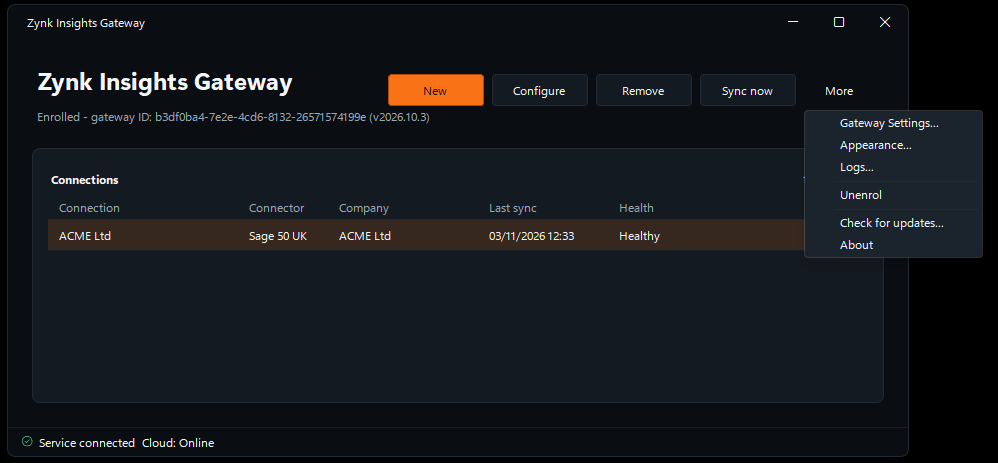
The top of the window shows whether this machine is enrolled, its gateway ID and the gateway version.
The buttons along the top are:
- Enrol... — shown when the machine isn't enrolled yet. See Enrolling.
- New — add a connection. See Connecting Sage 50.
- Configure — change the selected connection's settings.
- Remove — delete the selected connection.
- Sync now — refresh the selected connection's data straight away.
- More — the menu described below.
The Connections list shows each connection with its connector, Company, last sync time and health. A connection that hasn't been set up yet shows not configured — select it and press Configure to finish setting it up.
Status Bar
The status bar at the bottom shows:
- The background service: Service connected, Contacting the gateway service... or Gateway service unavailable.
- The connection to Zynk Insights: Cloud: Online, Connecting, Offline or Suspended.
More Menu
- Gateway Settings... — see below.
- Appearance... — choose light or dark mode for the app.
- Logs... — view the gateway's logs.
- Unenrol — disconnect this machine from your account. The gateway stops answering questions until it is enrolled again.
- Check for updates... — see Updates.
- About — the version, data folder, log folder and portal address.
Gateway Settings
Gateway Settings sets the default refresh interval for every connection that doesn't have its own.
- Leave Use installed default (5 min) ticked, or
- untick it and set Refresh (minutes), from 1 to 1440.
Press Save. Changes take effect within a few seconds, with no restart. Individual connections can override this on their Sync tab — see Sync Settings.
Logs
Choose More → Logs... to view recent log entries. Switch between Service and App logs and press Refresh to update.
The log files are also on disk, kept for 14 days:
| Log | Location |
|---|---|
| Service | C:\ProgramData\Zynk.Insights.Gateway\logs\service-yyyyMMdd.log |
| App | %LOCALAPPDATA%\Zynk.Insights.Gateway\logs\app-yyyyMMdd.log |
The service also writes start-up failures and crashes to the Windows Event Viewer → Windows Logs → Application, with source ZynkInsightsGateway.
Warnings and errors are sent to Zynk Insights automatically and can be viewed from the Gateways page of the portal. When contacting support, it helps to send the service log for the day of the problem.