Installing the Gateway
Downloading
Download the installer from the Gateways page of the portal using Download gateway, or directly from:
downloads.zynk.com/files/insights/Zynk-Insights-Gateway-Setup.exe
Installing
- Run the installer on the machine that runs Sage 50. Windows will ask for administrator permission — the publisher is Zynk Software Limited.
- Follow the steps in the setup wizard.
- On the last page, leave Launch Zynk Insights Gateway ticked and press Finish.
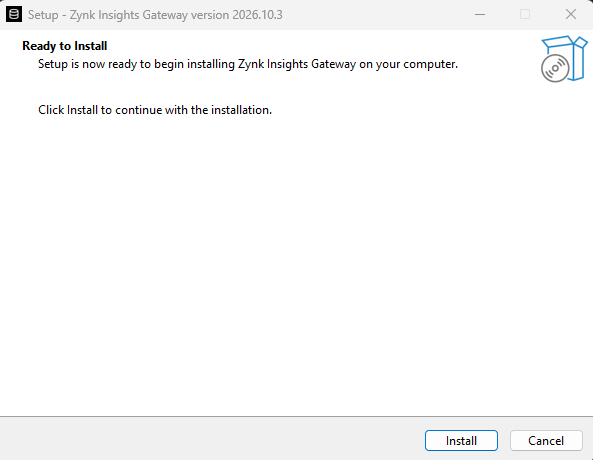
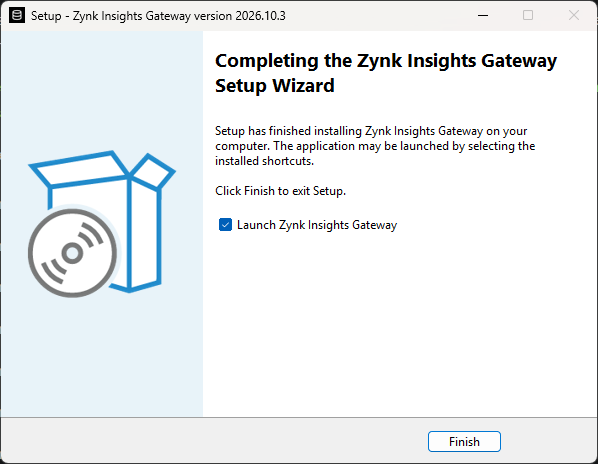
The desktop app opens and starts the enrolment wizard.
The gateway is installed to C:\Program Files\Zynk\Insights Gateway, and a Zynk Insights Gateway shortcut is added to the Start menu. Its settings, enrolment and local copy of your data are kept in C:\ProgramData\Zynk.Insights.Gateway.
Updates
The gateway updates itself. It checks for a new version every hour:
- If the desktop app is open, it asks whether to install now or later.
- If the app isn't open, the update installs in the background. Reopen the app afterwards if you need it.
To check straight away, open the desktop app and choose More → Check for updates.... If you're already on the latest version you'll see a message such as … v2026.10.1 is up to date.
Your enrolment, connections and local data are kept when the gateway updates.
Silent Installation
IT teams can install the gateway without any prompts using the standard installer switches:
| Switch | What it does |
|---|---|
/SILENT |
Shows progress only, with no questions |
/VERYSILENT |
Shows nothing at all |
/SUPPRESSMSGBOXES |
Suppresses message boxes |
/NORESTART |
Never restarts the machine |
/DIR="path" |
Installs to a different folder |
/LOG="file" |
Writes an installation log |
The machine still needs to be enrolled from the desktop app afterwards.
Uninstalling
- Uninstall Zynk Insights Gateway from Settings → Apps → Installed apps in Windows.
- In the portal, go to Gateways and press Revoke on the gateway, then Delete.
Note
Uninstalling leaves C:\ProgramData\Zynk.Insights.Gateway in place. Delete the folder by hand if you don't plan to reinstall.