Enrolling the Gateway
Enrolling links the gateway on this machine to your Zynk Insights account. You only need to do it once per machine. You must be an account Admin to enrol a gateway.
The enrolment wizard opens automatically the first time you start the desktop app. You can also open it at any time by pressing Enrol... in the main window.
Step 1: Sign In
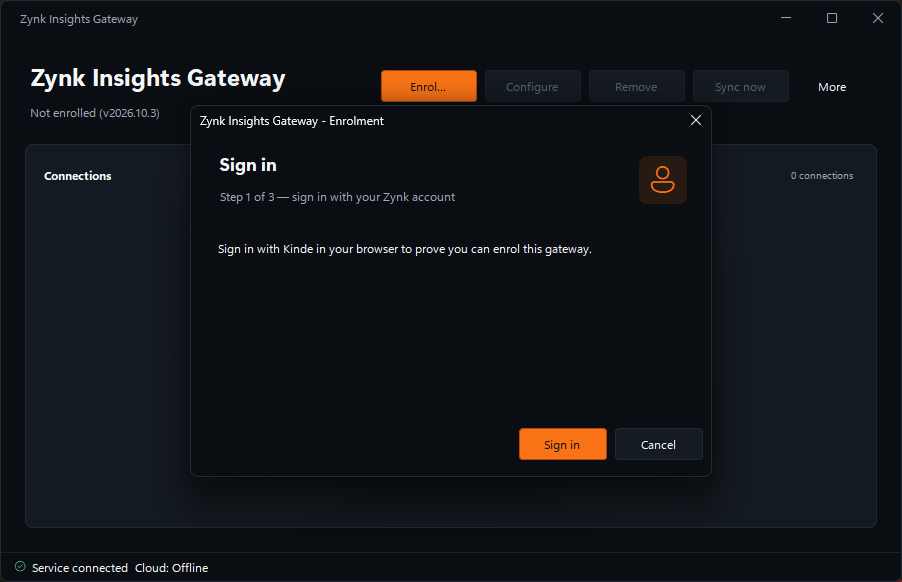
- Press Sign in. Your web browser opens the Zynk sign-in page, and the wizard shows Complete the sign-in in your browser....
- Sign in with your Zynk account.
- When the browser says Signed in, close the tab and return to the Zynk Insights Gateway app.
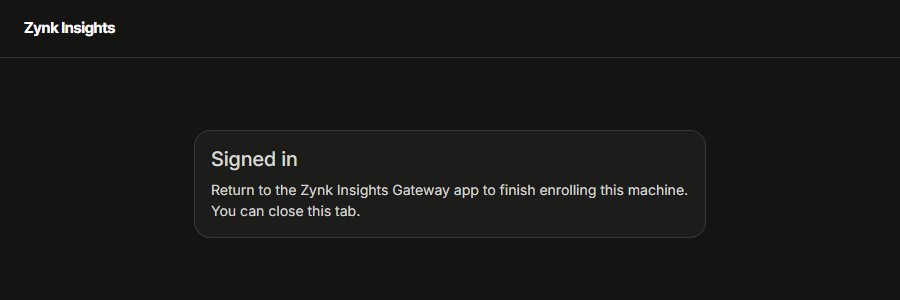
Step 2: Register This Machine
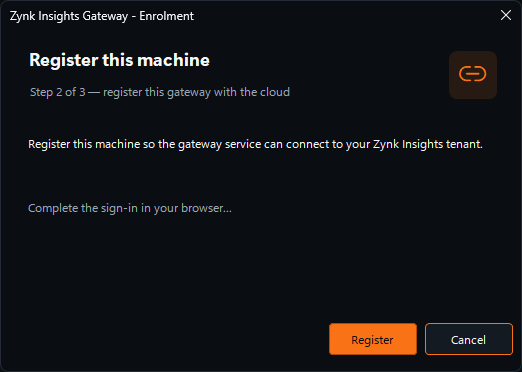
Press Register. The wizard registers the machine with your account and shows its progress as it goes.
Step 3: Done
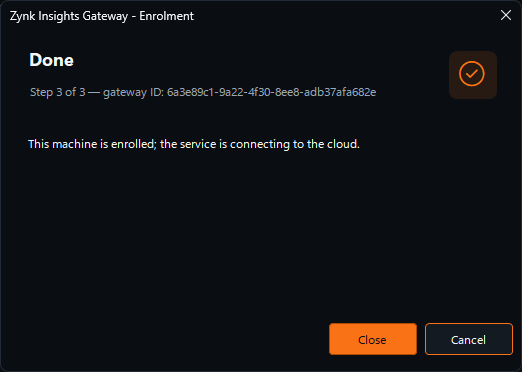
The wizard shows the machine's gateway ID and confirms This machine is enrolled; the service is connecting to the cloud. Press Close.
Within about 90 seconds the gateway shows as Online on the Gateways page of the portal. Next, connect Sage 50.
If Enrolment Fails
If something goes wrong the wizard shows Enrolment failed with the reason, and the button changes to Retry.
- Only tenant administrators can enrol a gateway. — ask an Admin to enrol the machine, or to make you an Admin on the Users page.
- If the browser sign-in doesn't complete, check you can open insights.zynk.com in a browser on this machine.
For other problems see Troubleshooting.
Re-enrolling and Unenrolling
Running the enrolment wizard again on an enrolled machine gives it a new gateway ID. The previous enrolment of this machine, and its connections, are revoked automatically, so you'll need to set up Sage 50 again.
To disconnect the machine, choose More → Unenrol in the main window. The gateway stops answering questions until it is enrolled again.