Backing Up and Restoring Data in Zynk Workflow
Zynk provides built in backup and restore functionality, which will take a copy of all of your data, and allow it to be restored in case of disaster.
Creating a Backup
You can create a backup of your Zynk data by going to File > Backup. You will see a screen like the one shown below.
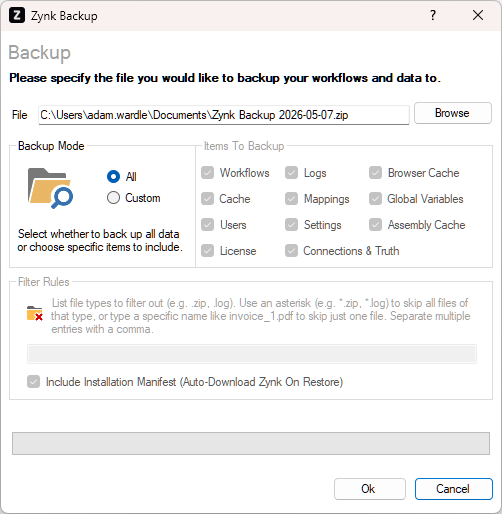
The following options are available:
- File - The name of the backup file. The data will be stored in the form of a
.zipfile. - Backup Mode - Choose whether to include all data in the backup, or just selected data. If you choose the latter, the following options are available:
- Workflows - This includes your workflow files, and any files stored within the workflow's working directory (e.g. XSLTs and archives).
- Logs - This includes all of your workflow history.
- Browser Cache - This includes cookies stored in Zynk's built in web browser, which is used when setting up certain types of connection.
- Cache - This includes all of the records in Zynk's cache, which can be viewed via the 'Caching' button on the main toolbar.
- Mappings - This includes all of the records in Zynk's mapping tables, which can be viewed via the 'Mappings' button on the main toolbar.
- Global Variables - This includes all of the values in the global variables list, which can be viewed via the 'Global Variables' button on the main toolbar.
- Users - This includes all of the user accounts, which are configured under Manage > Users.
- Settings - This includes all of your preferences, which are configured under Tools > Options.
- Assembly Cache - This includes Zynk's assembly cache in the backup.
- License - This includes your Zynk license key in the backup.
- Connections & Truth - This includes all connections and entries in the truth table.
- Filter Rules - This setting allows you to exclude files that match certain patterns from the backup. For example, you could exclude the archive files Zynk generates from your backup by specifying
archive_*.zip.
Once you have configured your settings, click OK to begin backing up your data.
Restore
In the event that data has been lost and you need to restore it from a backup you have taken, you will need to go to File > Restore. You will see a screen like the one shown below.
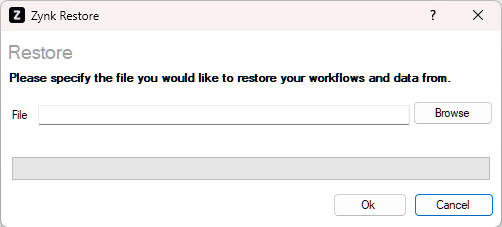
You will need to select your backup file using the browse button, or enter the file path manually. Then click OK to restore your data.
Important
Please note that your current Zynk data will be overwritten by the contents of the backup file. The only exceptions are files that are not present in the backup. For example, files that were excluded from the backup, or new files that have been created since the backup was taken. The current copy of these files will be preserved.