History
The History page shows the individual Agent runs that have been executed by the integration and their current status. You can reach it from the Dashboard, using View all history in the History section.
The Records page shows each order, invoice or stock level. History shows each time an Agent ran. Use it to check your Agents are running on schedule, or to find out why a run had problems.
To see the runs for just one Agent, click its History icon on the Agents page.
History Settings
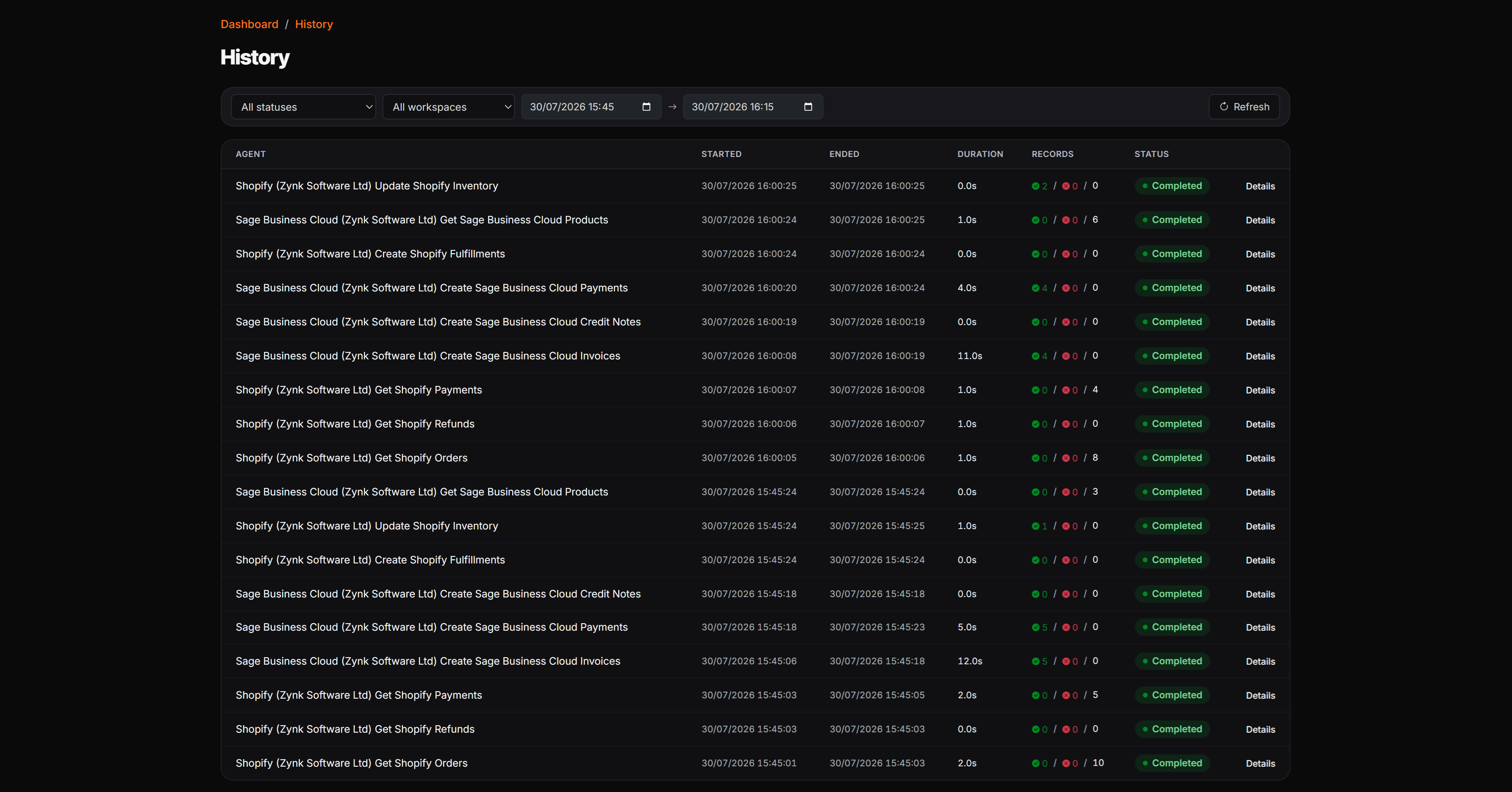
Filters
To make searching easier, we've included a number of tools to help.
Filters apply overall restrictions to the History table to help you find the data you require.
At the top of the table, you will find a Status dropdown, a Workspace dropdown, a date range filter and a Refresh button.
- Status - Show only runs with a specific status.
- Workspace - Filter runs by a specific Workspace.
- Date range - Set a timeframe for the displayed runs.
- Refresh - Reload the table to show the latest runs.
History Table - Summary
The records that appear in the table are broken down into the following:
- Agent - The name of the Agent.
- Started - The time a specific Agent run started.
- Ended - The time a specific Agent run ended.
- Duration - How long the Agent run took.
- Records - The number of OK, failed and skipped records for that run.
- Status - The result of a specific Agent run.
- Details - View the full log information for that Agent run.
History Table - Detail
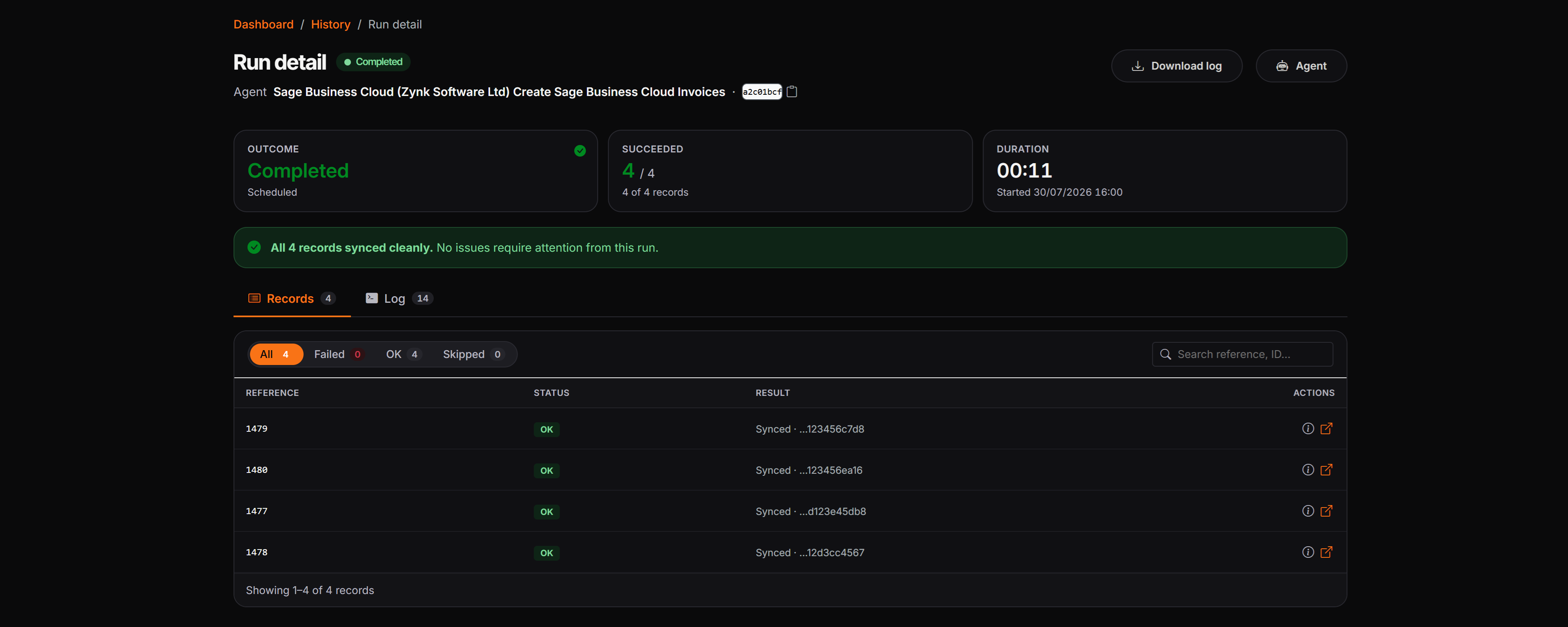
The detailed log information for a run can be seen by clicking Details for a specific run. This includes the following:
- Outcome - The overall result of the run, and how it was started.
- Succeeded - How many of the run's records were processed successfully.
- Duration - How long the run took and when it started.
At the top of the page, Download log downloads the full log, and Agent takes you to the Agent that ran.
Next to the Agent's name is the run's ID. Click the clipboard icon to copy it, and include it if you contact support.
If any records failed to sync, a warning banner will appear with a View failed records button. If a run keeps failing, check the Alerts page for step-by-step guidance, or see Troubleshooting.
Each failed record's Result explains what went wrong, for example a missing address. Open the record to see its alert and How to fix steps.
You can switch between the Records and Log tabs to view what happened during the run.
The Records tab shows a table of individual records processed during the run, which can be filtered by All, Failed, OK or Skipped. You can also search by reference or ID. Each record shows the following:
- Reference - The unique reference for the record.
- Status - The status of the record.
- Result - A description of what happened.
- Actions - View more detail or open the record directly.
The Log tab shows the full log output, which can be filtered by All, Info, Warn and Error and searched using the search bar. You can copy the log or download it using the buttons on the right.