Alerts
The Alerts show you any issues that require your attention, including issues with individual records, issues with specific Connections, and any other information that is causing a problem. Each alert tells you what went wrong and gives How to fix steps, so start there if a record hasn't synced.
Dealing with an alert
- Open the alert and read the How to fix steps.
- Fix the problem where it started. Most alerts have a link such as Open in ServiceM8 to take you straight there.
- Wait for the next run. The record is picked up again automatically once the problem is fixed.
- Click Resolve.
If you're not sure what to do, click Ask Zynk AI, or send the Activity ID at the bottom of the alert to support.
For what specific alerts mean and how to fix them, see the Alert Reference.
An order changed after it was sent
If an order changes after it has already been sent to your accounting platform, you'll get a Needs review alert showing the old and new totals. Zynk Autopilot won't edit a document that's already been sent, because your accounting platform often won't allow it once it's been paid, allocated or included in a VAT return.
To correct it, follow the alert's steps, which usually means raising an extra invoice in your accounting platform for the difference. Then click Resolve.
Alert Settings
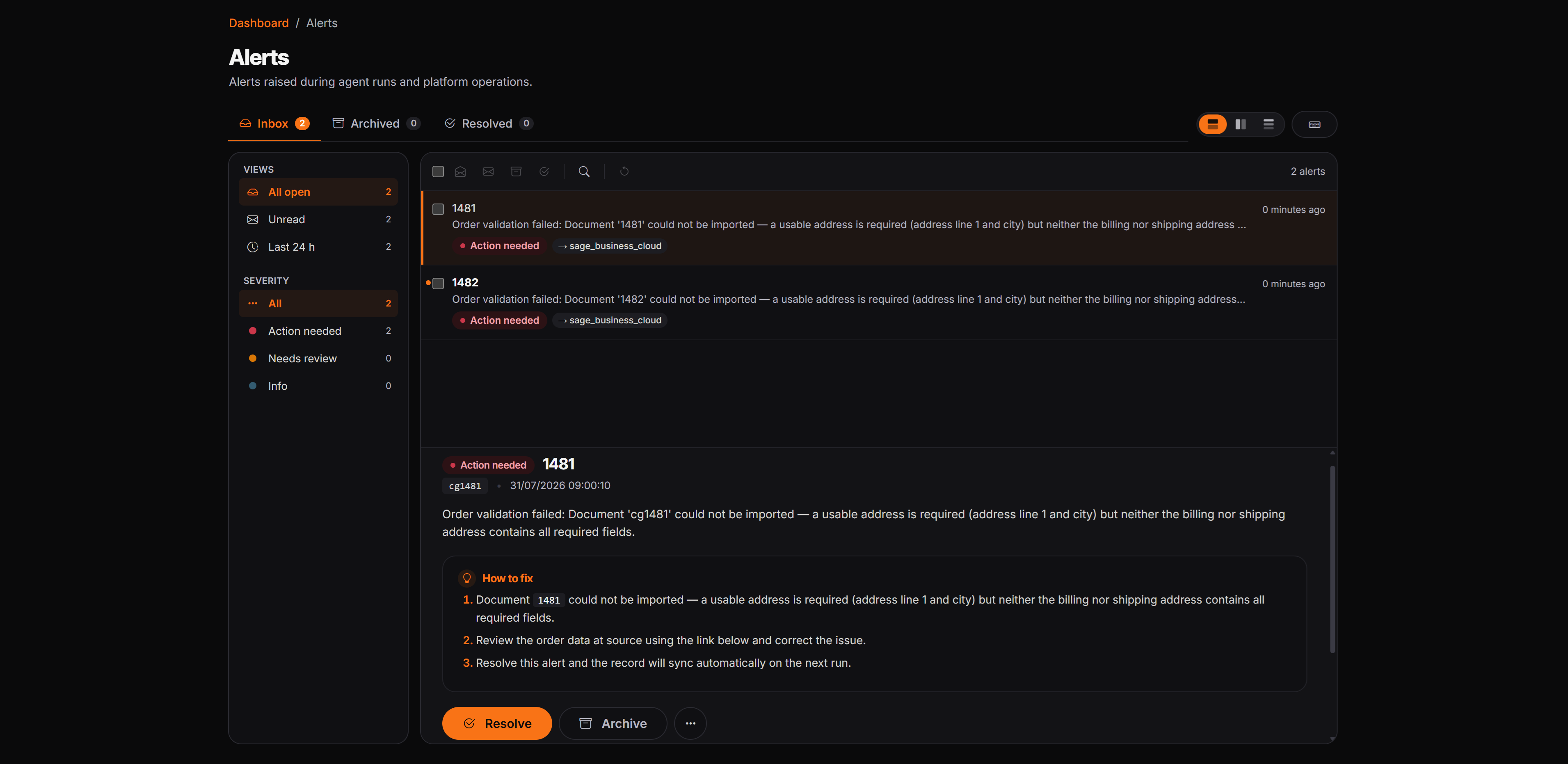
Tabs
At the top of the page, you will find three tabs to help you filter alerts by their current status.
- Inbox - Alerts that are currently active and require your attention.
- Archived - Alerts that have been archived.
- Resolved - Alerts that have been resolved.
Filters
The left sidebar allows you to filter alerts by view and severity.
Views
- All open - All currently active alerts.
- Unread - Alerts that have not yet been read.
- Last 24 h - Alerts raised in the last 24 hours.
Severity
- All - All alerts regardless of severity.
- Action needed - Something has stopped and needs you to fix it before it can carry on.
- Needs review - Something has gone through but you should check it, such as an order that changed after it was sent.
- Info - Informational alerts.
Bulk Actions
You can select multiple alerts using the checkboxes in the alert list, or select all alerts at once using the checkbox in the table header, and then use the toolbar at the top of the list to Mark as read, Mark as unread, Archive or Resolve them all at once. On the Archived tab, you can Unarchive them instead.
Note
If an alert is marked as resolved but the issue has not been fixed, the alert will reappear on the next run.
Alert Detail
Clicking on an alert will display the full detail below the list, or to the right if you've switched to the vertical layout, including a How to fix section with step-by-step guidance on how to resolve the issue.
From here, you can also take the following actions:
- Resolve - Mark the alert as resolved.
- Archive - Archive the alert.
- Always archive alerts like this - In the ⋯ menu next to Archive. Mutes this type of alert, so future ones are archived automatically. You can see everything you've muted in Notifications.
- Mark as unread - Re-highlight the alert, using the button in the toolbar at the top of the list.
- Still stuck? - Click Ask Zynk AI for help with the alert.
The History section at the bottom shows previous occurrences of the same alert, with links to Open record, Open run and a link to the record in its source system. It also shows an Activity ID you can copy and send to support if you need help.
Operations
| Action | Intent | Result |
|---|---|---|
| Resolve | "I've fixed this." | Moves the alert to the Resolved tab. |
| Archive | "I'm ignoring this." | Moves the alert to the Archived tab. |
| Mark as read | "I've seen this." | Removes the unread highlight but keeps it in your list. |
| Unarchive | "I made a mistake." | Moves the alert back to the Inbox. |
Layout
You can switch between a horizontal split, a vertical split or a list only view using the buttons in the top right.
Keyboard Shortcuts
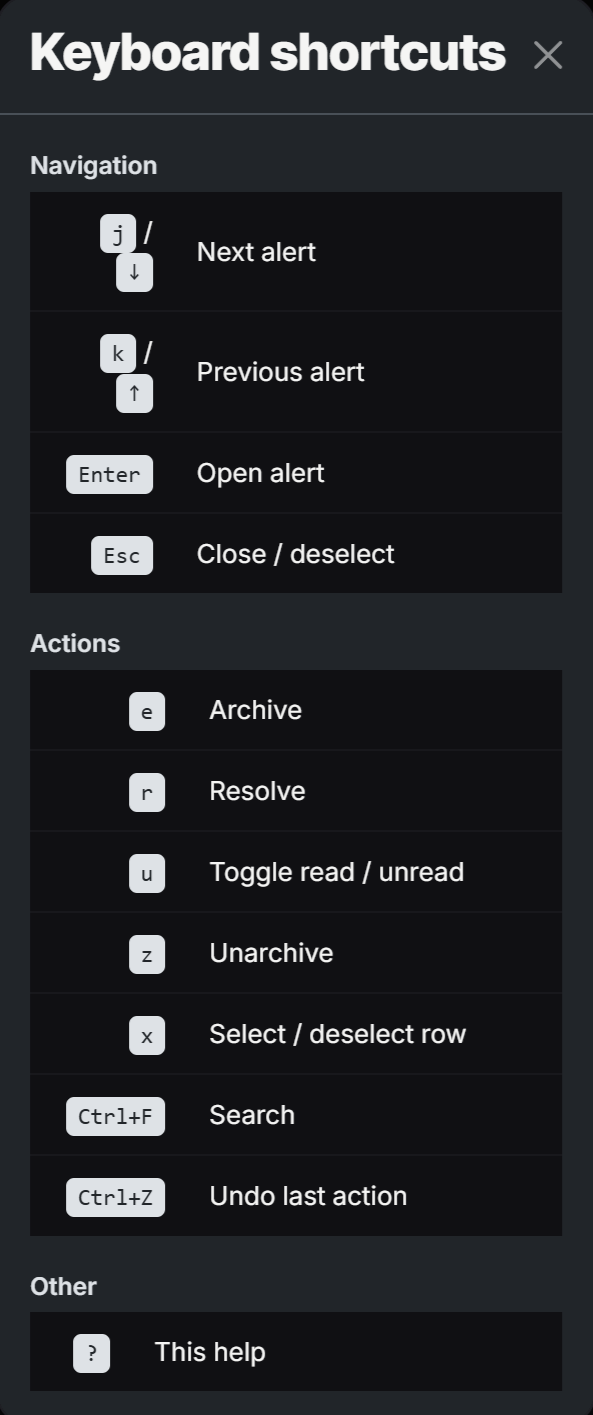
The Alerts page also supports a number of keyboard shortcuts to help you work more efficiently, accessible via the button with the keyboard symbol in the top right.