Agents
Agents are what actually move your data. Each one does a single job in one direction, such as getting orders from your store or creating invoices in your accounting platform.
This is where you can manage existing Agents. You can review usage, configure settings and monitor status. If something has stopped working, set the Status dropdown to Failing to see just those Agents, then open one to see its recent runs. To add more, use Add agent, Set up with AI or the Setup Wizard.
Add Agent
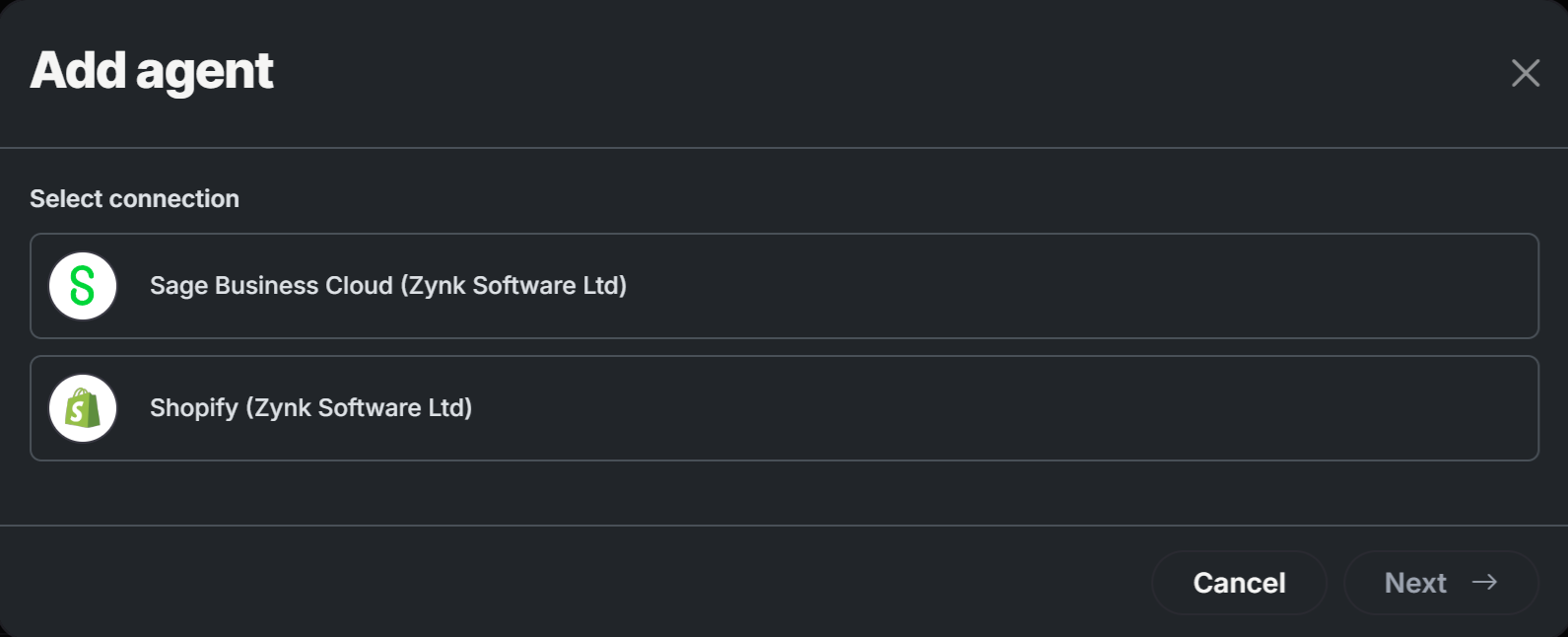
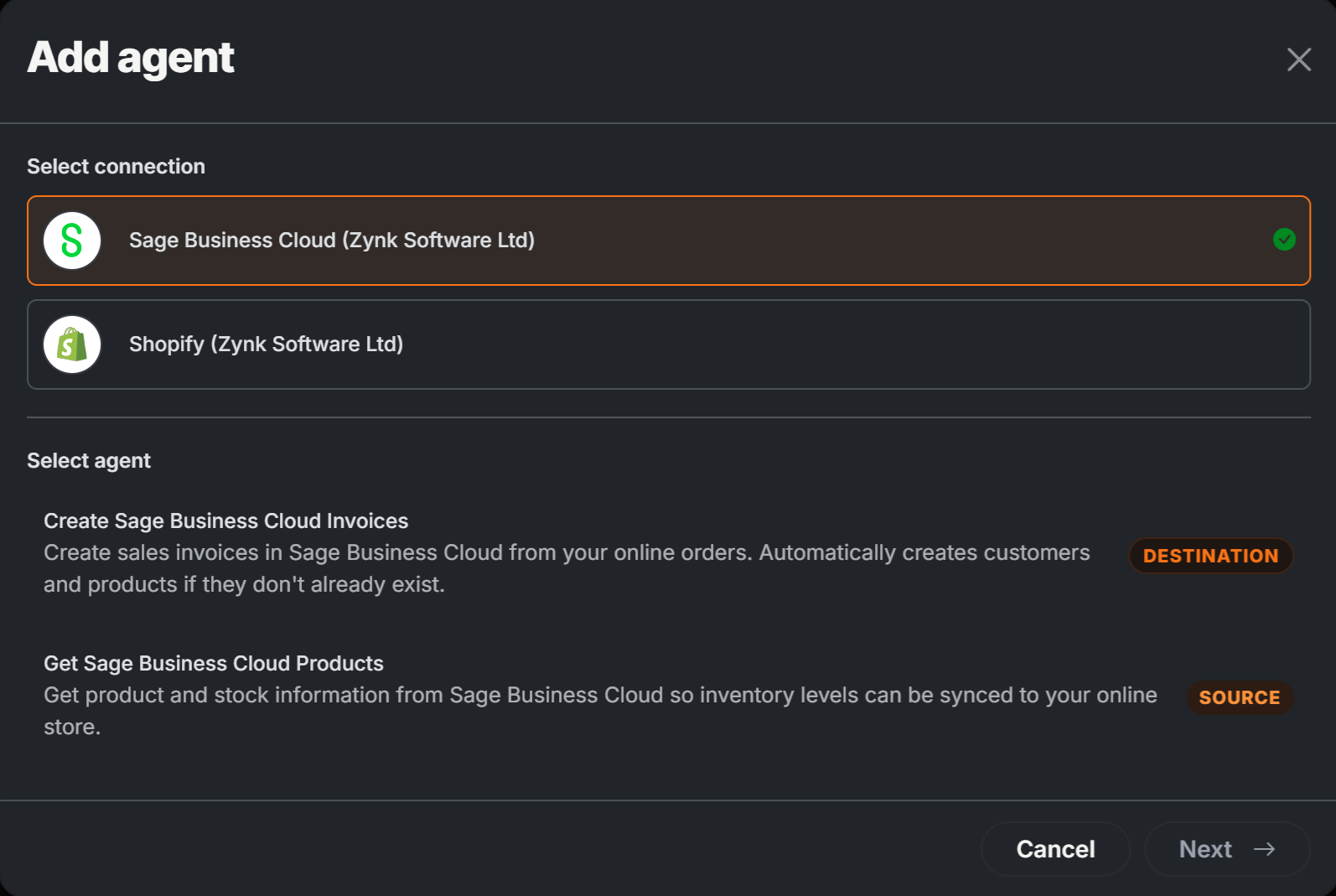
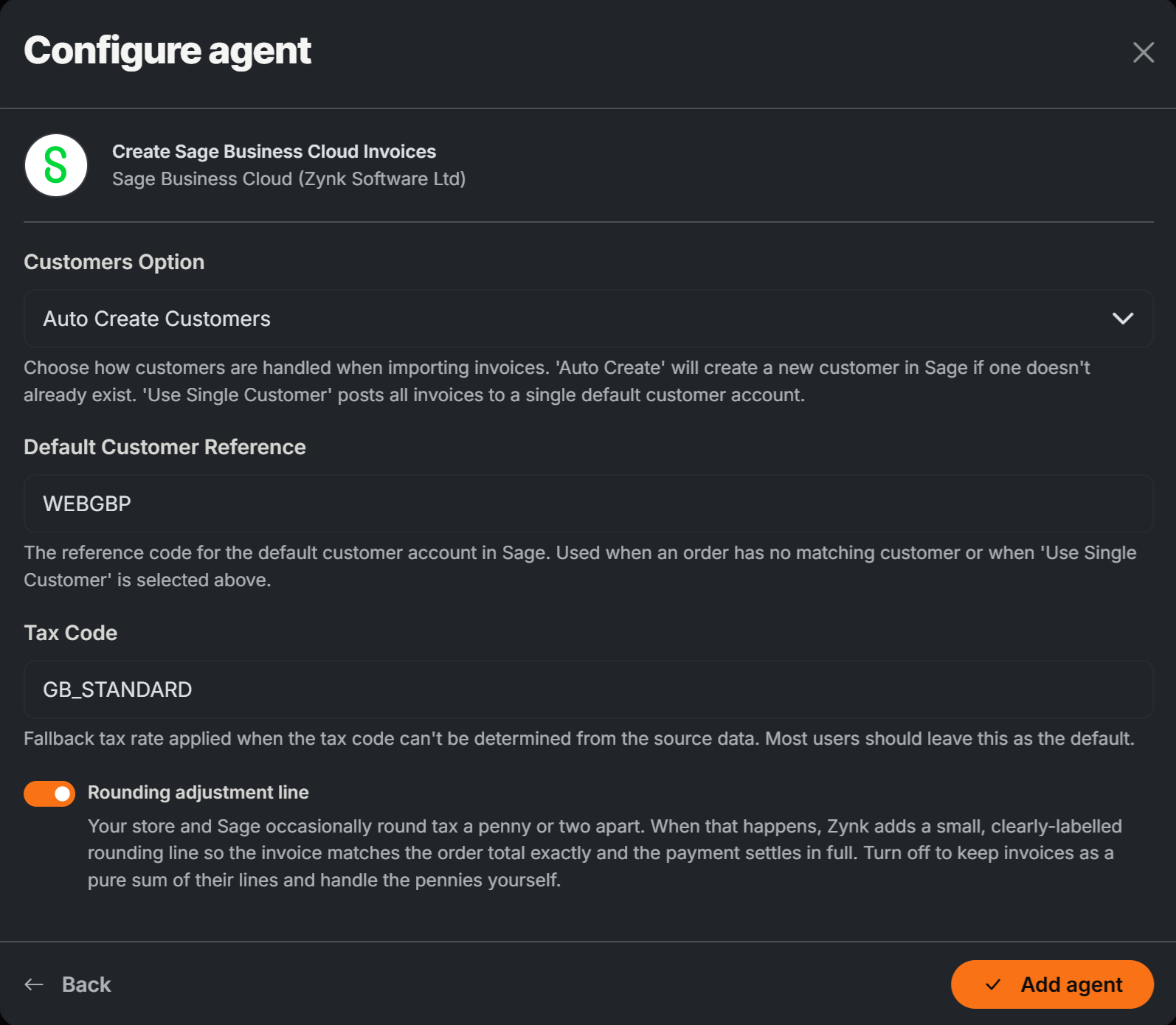
Using the Add agent button will open a menu showing your available Connections. Once you've selected a Connection, you'll be taken through a short setup process similar to the Setup Wizard, where you can configure the Agent's start date and processing mode before adding it.
The Start Date decides how far back the Agent goes on its first run, and can't be more than 30 days ago. Use it if you want to bring in older records.
The Processing Mode decides which records the Agent picks up on each run:
- New only - Each record is imported once.
- New + changed - Records are imported again if they change in the source system, such as stock levels.
- Always - Every record is imported on every run. Only use this when asked to by support.
Set up with AI
Click Set up with AI and tell the AI Assistant what you want to connect. It will draft a plan and walk you through connecting your accounts.
Setup Wizard
You can create a new Connection and configure new Agents using the Setup Wizard. To open it, click Set up with AI, then Use the setup wizard.
Agent List
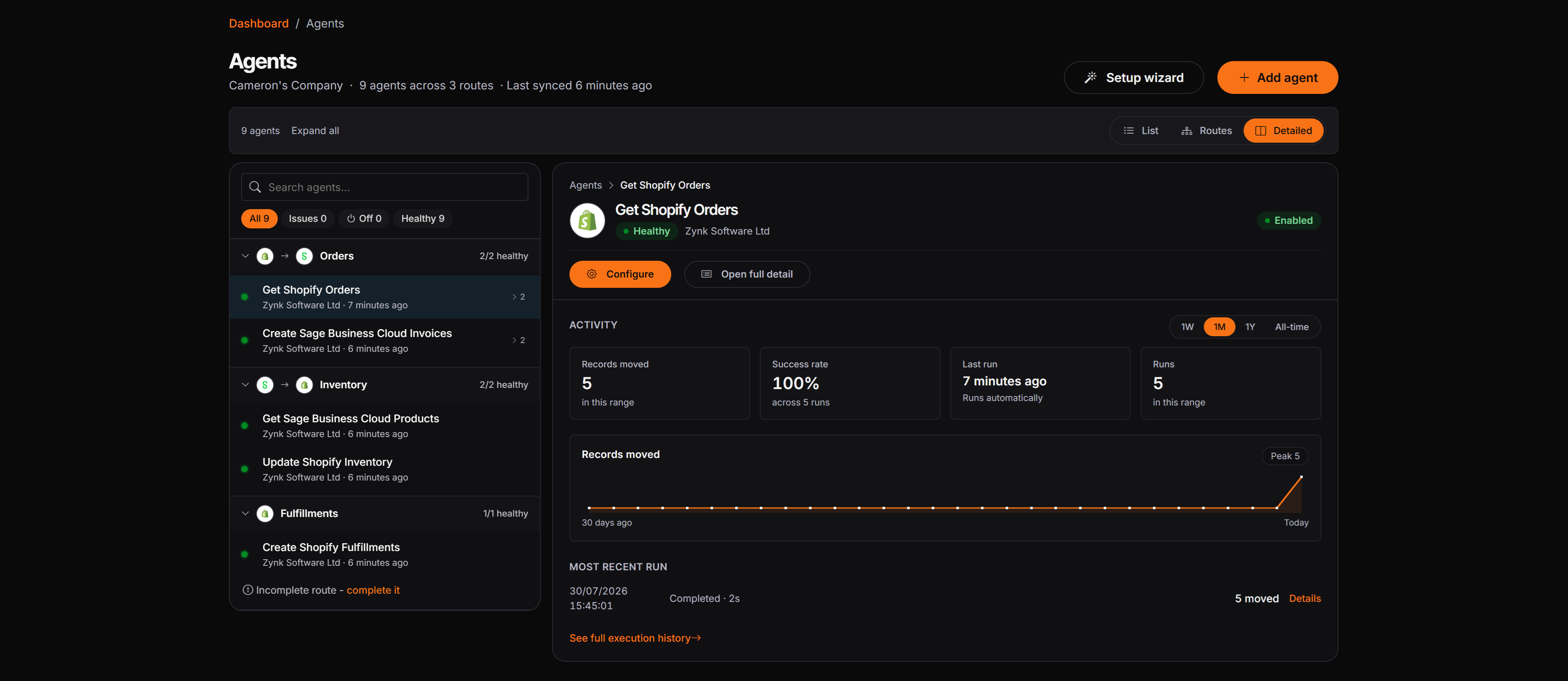
You can view your Agents in three ways, using the buttons at the top right: List, Routes and Detailed. List is shown by default.
In List view, you can search for an Agent by name, or filter by direction, Connection or status. For example, set the Status dropdown to Failing to see only the Agents that have stopped working. The status options are All statuses, Healthy, Needs attention, Failing, Retrying, Paused and No data.
Each Agent in the list has three icons on the right: Details opens the Agent's details, Configure opens its settings, and History shows its recent runs.
Some Agents have linked Agents, such as payments and refunds under an orders Agent. These come from the Also sync options during setup, and show underneath their main Agent. This is why the total number of Agents can be higher than the number listed.
In Detailed view, your Agents are grouped by Route in the left panel. You can filter them using All, Issues, Off or Healthy, and use the search bar to find a specific Agent.
Agent Detail
In Detailed view, selecting an Agent from the list will display its details in the right panel.
- Records moved - The number of records the selected Agent has synced in the period selected (1W, 1M, 1Y or All-time).
- Success rate - The performance of the selected Agent as a percentage.
- Last run - The last time the selected Agent ran.
- Runs - The number of times the selected Agent has run in the period selected (1W, 1M, 1Y or All-time).
- Status - Whether the selected Agent is enabled or disabled.
Configuration
Each Agent has its own configuration options. Click the Configure button to edit the selected Agent.
To pause an Agent, click Configure and switch off Status. It stops running until you switch it back on.
Full Detail
Click the Open full detail button to drill in to each Agent to see full history and more detail.