Connections
A Connection is how Zynk Autopilot logs in to one of your systems, such as your store or your accounting platform. Your Agents use these Connections to move data, so if a Connection stops working, its Agents stop too.
The Connections page is where you manage existing Connections, add new Connections, and delete any Connections that are no longer required.
To add one, click New connection, or Set up with AI to let the AI Assistant set up your Connections and Agents together.
A Connection on its own doesn't move any data. Once it's connected, you need Agents to tell Zynk Autopilot what to sync and in which direction. You can add them with Add agent on the Agents page, or let the AI Assistant set them up for you.
Connection Settings
Search and Sorting
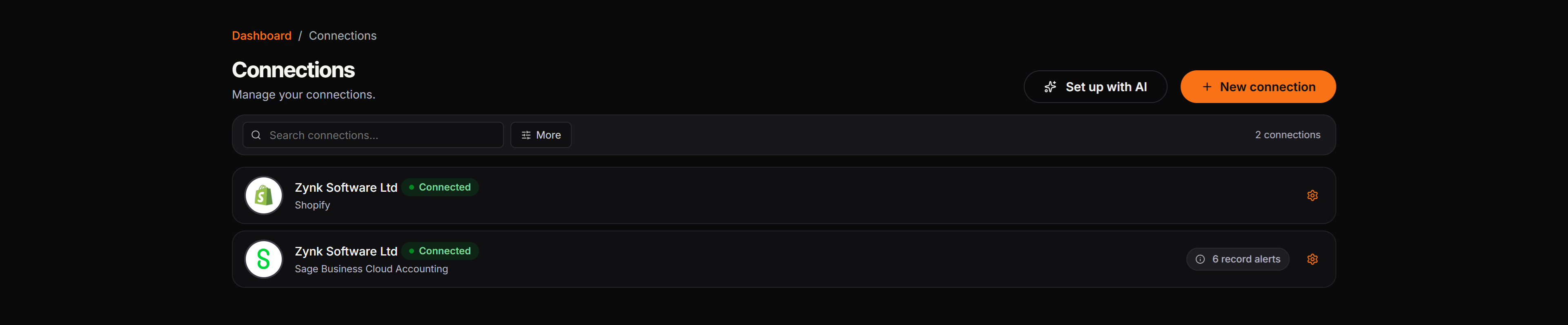
At the top of the list, you will find a Search Bar and the More option.
Search Bar
The Search Bar can be used to look up a specific Connection by name.
More

The More option expands to reveal additional filters.
- Type - Filter by the system the Connection is for.
- Status - Filter by Connected, Warning, Error or Disconnected.
- Sort by - Order the list by Date (newest first), which is the default, Name (A→Z) or Status (errors first).
Connections List
This list shows all of your Connections. At a glance, you can see the following details:
- Icon - The system the Connection is for.
- Name - The friendly name given to the Connection, with the system name underneath.
- Status - The Connection's current state: Connected, Warning, Error or Disconnected.
- Alerts - If any records using this Connection have an alert, a link such as 1 record alert shows here.
- Settings - The gear icon opens the Connection's settings.
If a Connection stops working
If a Connection shows Warning or Error, click the gear icon and choose Reconnect to sign in again. See My Connection has stopped working for more help.
Deleting a Connection
Click the gear icon and choose Delete. You'll be asked to type the Connection's name to confirm. You can also click the clipboard icon next to the name to copy it.
Configuration
Each Connection has Configuration options, which are specific to each Connection type:
Connectors
Accounting

FreeAgent
Connect FreeAgent to automate your accounting and keep your finances in sync.

QuickBooks Online
Integrate QuickBooks to automate your bookkeeping and financial reporting.

Sage 50
Connect Sage 50 on your own computer using the Autopilot Desktop app.

Sage Business Cloud Accounting
Fully automate your cloud accounting by linking your ecommerce platforms to Sage Business Cloud.
Xero
Link Xero to streamline your accounting and keep your finances up to date.
eCommerce

BigCommerce
Sync BigCommerce orders, refunds, payments, inventory and fulfilments with your accounting platform.

eBay
Synchronise eBay marketplace sales orders and manage multi-channel stock availability.

ServiceM8
Send approved ServiceM8 jobs and their payments to your accounting platform, and keep stock levels in sync.

Shopify
Connect your Shopify store using an app you create in the Shopify Developer Dashboard.

Square
Sync Square orders, payments, refunds, stock levels and daily till takings with your accounting platform.
Wix
Bridge the gap between your Wix eCommerce site and your financial management software.

WooCommerce
Streamline your WordPress store orders and inventory levels directly with your ledger.