Records
The Records section is useful for confirming if an order has been processed, what stock figures have been sent, or the current status of any other records processed by the integration.
Checking an order has synced
Search for the order's reference, then check which tab it's under:
- Completed - It has gone across. Open it, and the Timeline shows when it was collected and when it arrived.
- Awaiting action - Zynk Autopilot needs something from you before it can send it. The record's alert tells you what.
- Not there at all - It hasn't been collected yet. See An order hasn't appeared in my accounting platform.
Records Settings
Tabs
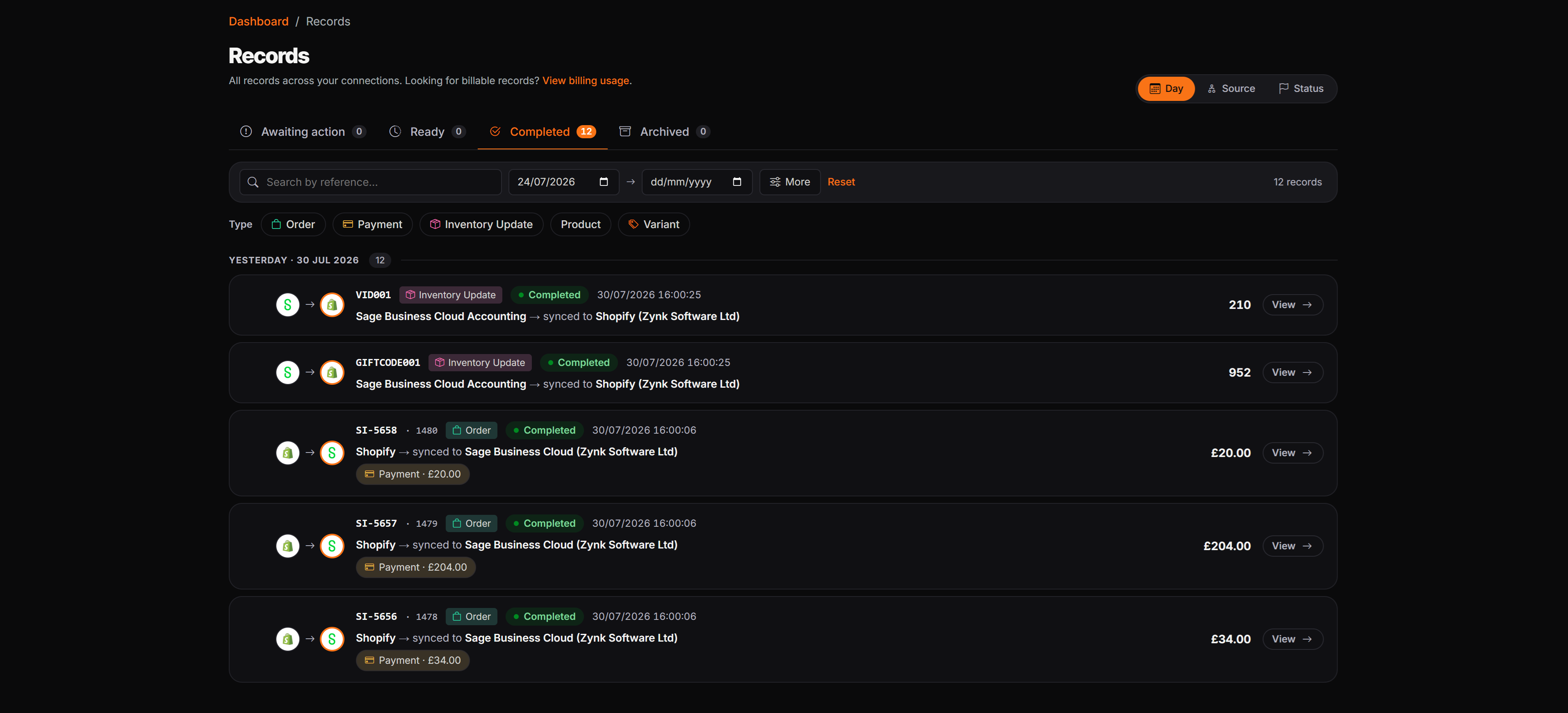
At the top of the page, you will find four tabs to help you filter records by their current status.
- Awaiting action - Records that need something from you before they can be processed. Open one to see what's needed. There will usually be a matching alert with How to fix steps.
- Ready - Records that are ready to be processed.
- Completed - Records that have been successfully processed.
- Archived - Records that have been archived.
Approving records
Some records wait for you to approve them before they're sent, for example if an Agent is set to run manually. These show under Awaiting action, alongside any records that have a problem.
Above the table on that tab, you'll find two buttons:
- Approve all - Approves every record that doesn't have an alert. They'll be sent on the next scheduled run.
- Approve all & sync now - Does the same, but sends them straight away.
Records with an alert aren't approved, as they need fixing first. Follow the alert's How to fix steps instead.
You'll also get a New records need approval notification when records are waiting.
Search and Filters
To make searching easier, we've included a number of tools to help.
At the top of the table, you will find a Search Bar, a date range filter, and the More option for additional filters.
Search Bar
The Search Bar can be used to look up a record by its reference, such as an order or invoice number.
Date Range
The date range filter can be used to set a timeframe for the displayed records.
If nothing shows in the selected dates, click Show all records to clear the date range. Your search and other filters are kept.
Type
Below the search bar, you can filter by type of record: Order, Payment, Inventory Update, Product or Variant.
More
The More option expands to reveal additional filters.
- Connection - Filter by a specific Connection.
- Agent - Filter by a specific Agent.
- Record Type - Filter by the type of record.
- Route - Filter by a specific Route.
Once you've set your filters, click Apply filters to update the table.
Group By
You can switch between Day, Source and Status using the buttons in the top right. This will change the way records are grouped in the table.
Records Table
The records that appear in the table are broken down into the following:
- Reference - The unique reference for the record.
- Type - The type of record.
- Agent - The source and destination systems for the record.
- Date - The date and time the record was processed.
- Value - The value of the record, such as the financial value of the order or the quantity of a stock record.
- Alert - Only shows if Zynk Autopilot has raised an alert for this record. Click it to see what went wrong and how to fix it.
- View - View more details of the record.
Records that are queued have a Sync now button to send them straight away, instead of waiting for the next scheduled run.
Record Detail
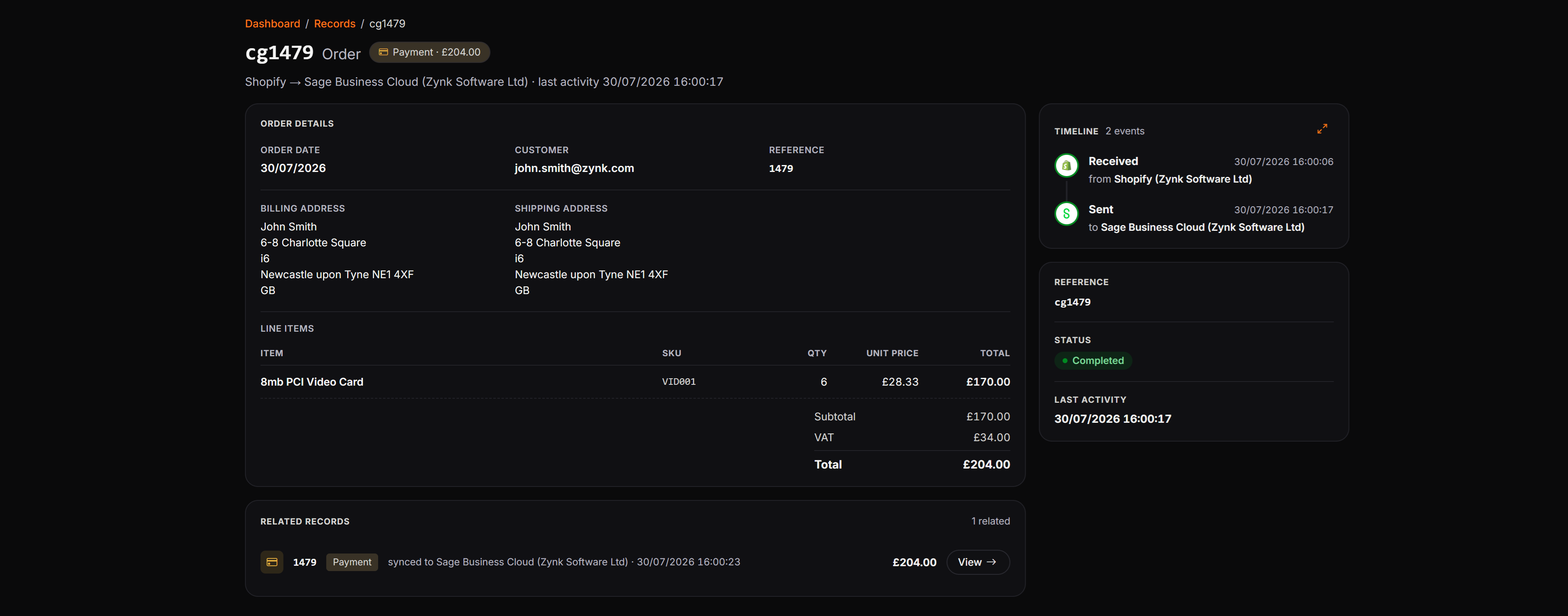
Clicking View on a record will take you to the full detail page for that record, which includes the following:
- Route - The source and destination systems for the record.
- Timeline - A chronological list of events for the record, showing when it was sent and received by each system.
- Reference - The unique reference for the record.
- Status - The current status of the record.
- Last Activity - The date and time of the last activity on the record.
- Line Items - The items on the order or invoice, with their quantity, price and total.
- Related Records - Any linked records, such as the payment for an order.