Sage 50
This section covers how to create a new Connection for Sage 50.
Sage 50 runs on your own computer, so Zynk Autopilot connects to it through the Autopilot Desktop app. The app needs to be installed on the computer that runs Sage 50, and must be running for your Agents to work.
Connection Settings
- In Zynk Autopilot, add a new Connection and choose Sage 50.
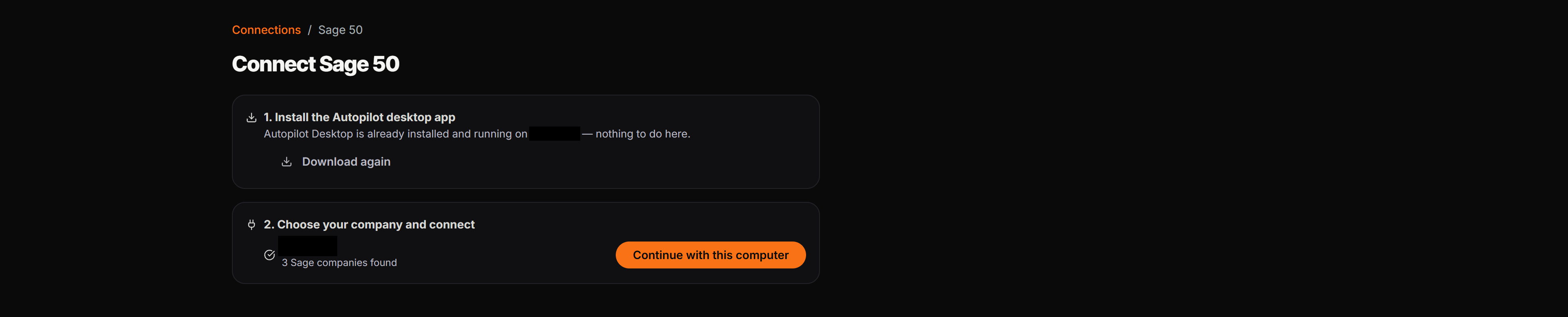
- Click Download the desktop app, and install it on the computer that runs Sage 50.
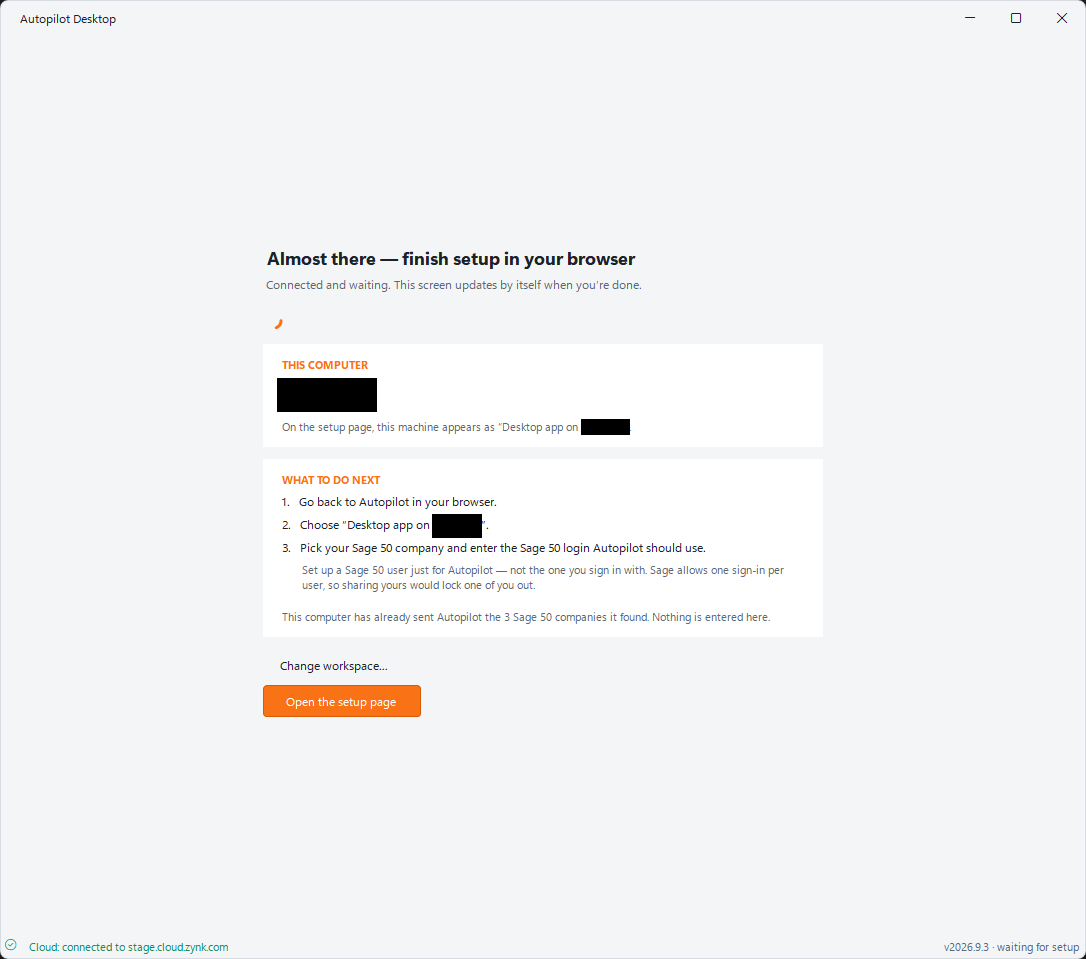
- Open the Autopilot Desktop app and sign in with your Zynk Autopilot account, then choose your Workspace.
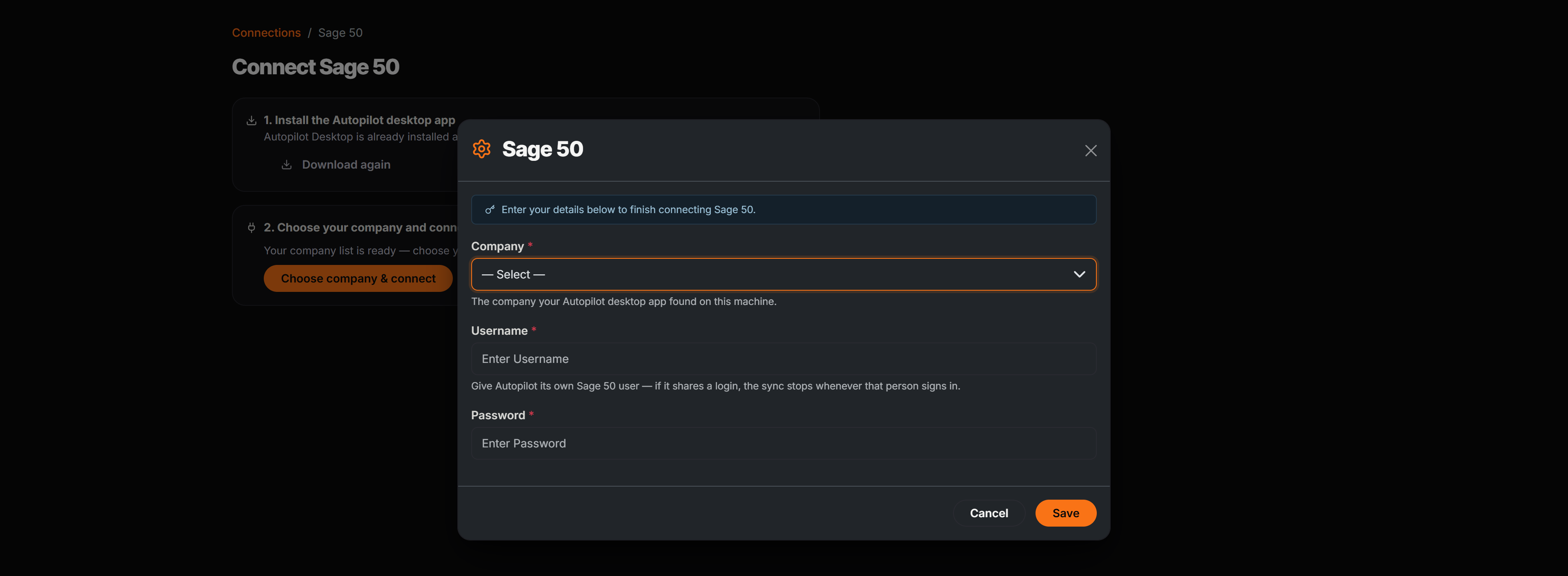
- Back in Zynk Autopilot, your computer will appear once the app has signed in. Choose your Sage 50 company and connect.
Note
Sign in to the desktop app with the same account you use for Zynk Autopilot. If you see an error saying there's no active user, you've signed in with a different account.
If your Connection stops working later, see the Troubleshooting guide.
Keeping the desktop app running
If the Autopilot Desktop app is closed, its Connection shows a warning on the Connections page saying the app is offline, with the computer's name and when it was last seen. Open the app again to fix it.
The app also has buttons to Run now, Reconnect, Switch workspace, Open log and Sign out.
What gets synced
- Invoices - Orders are created as invoices in Sage 50.
- Credit notes - Refunds are created as credit notes.
- Payments - Payments are recorded against their invoices.
- Stock levels - Stock levels from Sage 50 are sent to your store, straight after each Sage 50 stock export.
Choosing your settings
Customers
- Auto Create Customers - Matches each buyer to a Sage 50 customer, and creates one if there's no match.
- Use Single Customer - Posts every invoice to one customer account, set in Default Customer Reference. The account must already exist in Sage 50.
Product and tax codes
- Fallback Tax Code - Used when a line's tax rate can't be worked out. Leave it empty for the automatic choice.
- Carriage Nominal Code - Where shipping charges are posted. 4905 is Sage's usual code for carriage.
- Default Product Code - Used for lines with no SKU. S1 is Sage's built-in code for one-off items.
Bank accounts
- Bank Account per Payment Method - Send different payment methods to different bank accounts, for example cash to 1230. Each code must already exist in Sage 50 as a bank account. Any method not listed uses your main bank account.
- Bank Account per Currency - Only needed if you sell in more than one currency. You'll need a bank account in Sage 50 for each currency.
Sage 50 settings you may need
Some options need a setting switched on in Sage 50 itself:
- Rounding adjustment line needs Item VAT amendable switched on, under Settings → Company Preferences → VAT.
- Auto-create products needs Allow Negative Stock switched on, under Settings → Company Preferences → Products. Otherwise, create the products in Sage 50 first with some opening stock.
What happens next
A Connection on its own doesn't move any data. Once you're connected, add Agents to choose what to sync, or let the AI Assistant set them up for you. See After you launch for how to check it's working.