Users
The Users page allows you to view and manage the users who have access to your Workspace.
To open it, click the dropdown next to your username in the top right and select My Users.
Adding a team member
- Click Add User.
- Enter their email address, first name and last name.
- Switch on Administrator if they need to change your setup. Leave it off to make them a Member, who can only view things.
- Save. They can then sign in using that email address.
User Settings
User Roles
There are three roles available for users in Zynk Autopilot.
- Owner - Owns the Organisation and has full control over all settings. Can edit payment details and change what Zynk Autopilot plan the Organisation is on.
- Administrator - Has elevated permissions. Like Owners, Administrators can manage users, edit Connections, Agents and other information; however, they cannot edit payment details.
- Member - A standard user that has the ability to view Agents, Connections and History logs.
Users Table
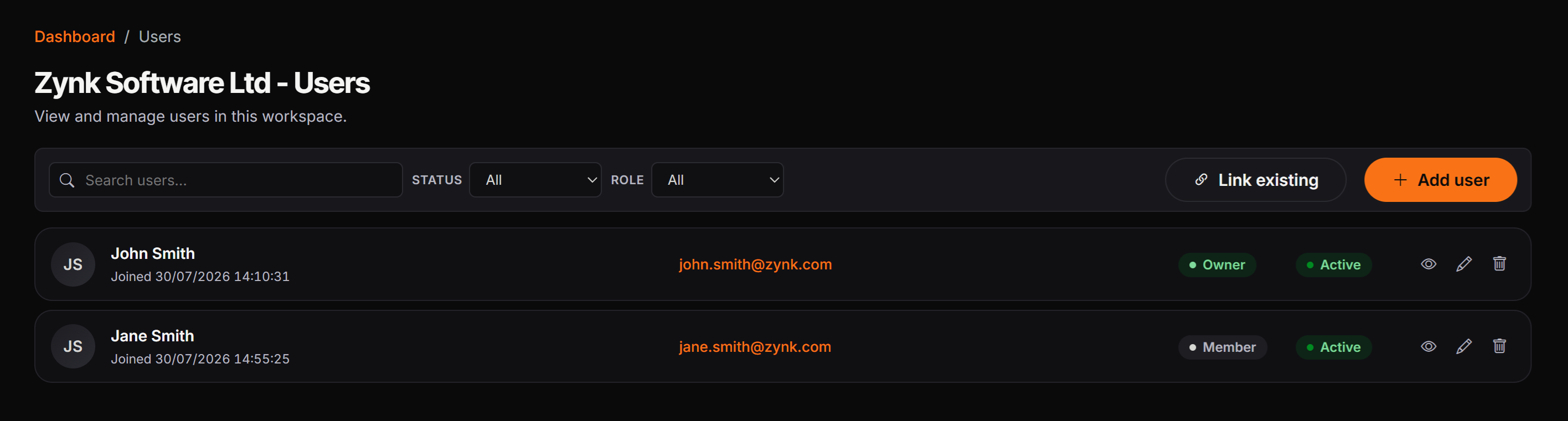
The users that appear in the table are broken down into the following:
- Name - The name of the user.
- Email - The email address of the user.
- Joined - The date the user joined.
- Role - The role of the user.
- Status - Whether the user is active or inactive.
- Actions - View, edit or delete the user.
Search and Filters
To make searching easier, we've included a number of tools to help.
At the top of the page, you will find a Search Bar, a Status filter and a Role filter.
Add User
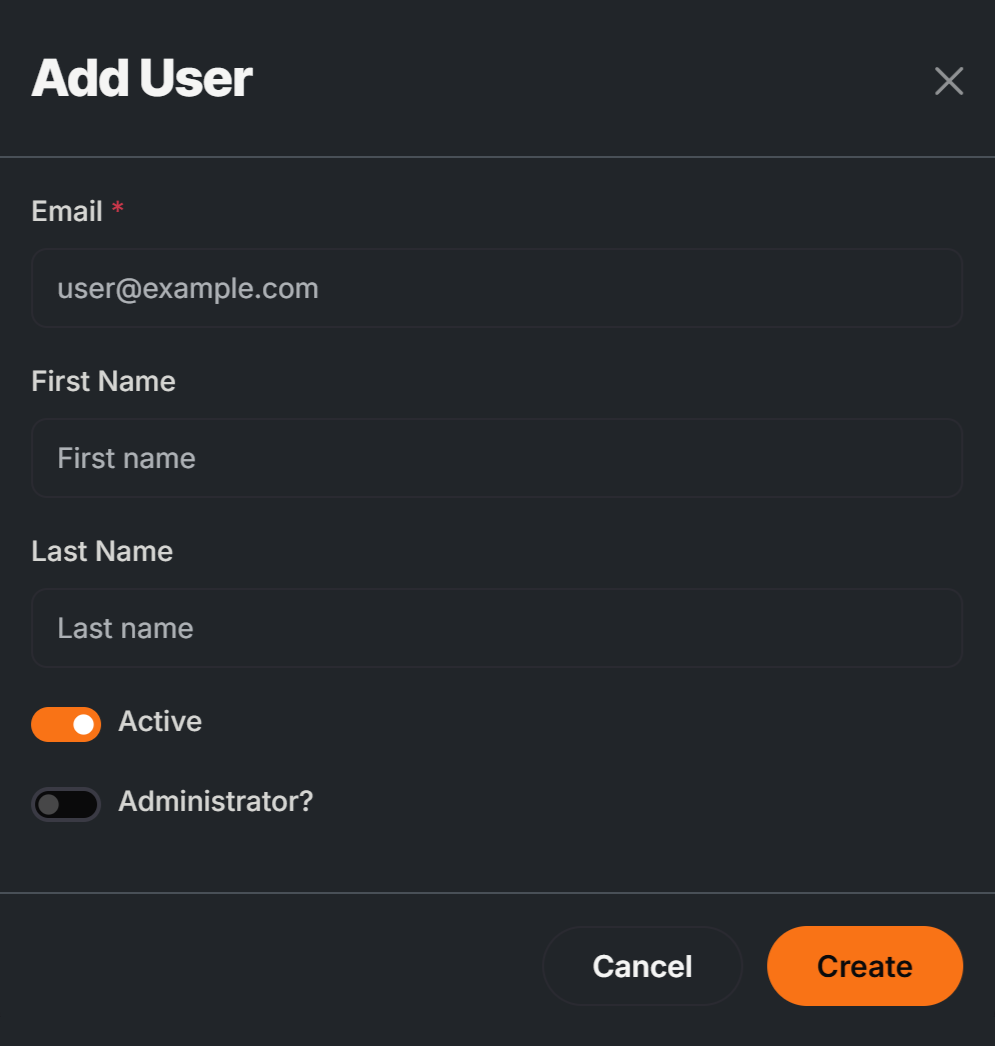
Using the Add User button will open a menu where you can invite a new user to your Workspace.
The email address of the new user.
First Name
The first name of the new user.
Last Name
The last name of the new user.
Active
Whether the user account is active or inactive. Users are marked as active by default.
Note
If a user is marked as inactive they will not be able to sign into their account. This can be changed at any time by editing their details and toggling the active button.
Administrator
Whether the user is created as an Administrator with elevated permissions. See User Roles for more information.
Link Existing User
Using the Link existing button will allow you to add an Organisation user that already exists in Zynk Autopilot and give them access to your Workspace. If no Organisation users are found, it will prompt you to create a new user.
Removing a user
If you only want to stop someone signing in for a while, edit them and switch off Active instead. Their account is kept, and you can switch it back on at any time.
Click Delete on the user and type their email address to confirm. You can add an optional reason.
If the user doesn't have access to any other Workspace or Organisation, removing them permanently deletes their account, and they won't be able to sign in again.
To remove yourself as the Owner, you must first transfer ownership to another user.