Claude
Zynk Insights is listed in Claude's directory of connectors. Once connected, you can use it in any Claude conversation, in Claude on the web, Claude Desktop and Cowork.
View our connector on the Claude directory
Before You Start
You'll need:
- A Zynk Insights account. See Signing In.
- At least one system connected, so Claude has data to read. For Sage 50, the gateway must be installed and the Sage 50 company set up. Without this, Claude connects but has nothing to answer from.
Note
On Claude Team and Enterprise plans, an Owner may need to allow Zynk Insights for the organisation before members can connect. Anthropic decides how connectors are managed on each plan and can change this at any time, so check Anthropic's help pages if something here doesn't match what you see.
Connecting
You can start from either Zynk Insights or Claude.
From Zynk Insights:
-
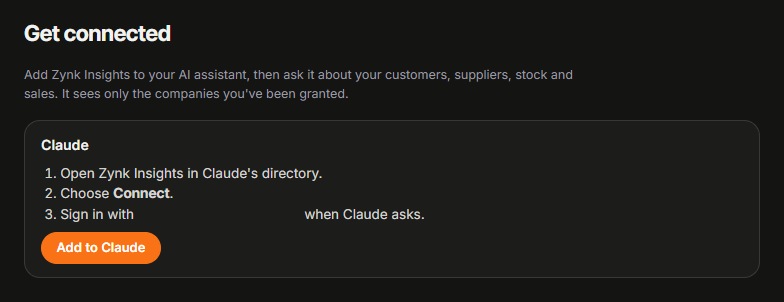
In the portal, open Get connected and press Add to Claude.
-
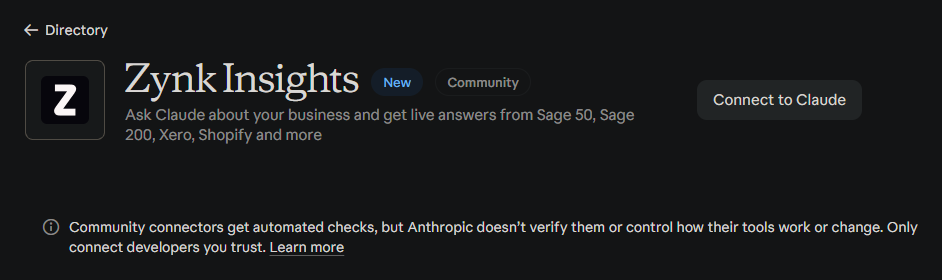
Zynk Insights opens in Claude's directory. Press Connect to Claude.
-
The button changes to Connected. If you aren't already signed in to Zynk Insights in this browser, a sign-in window opens first: sign in with your Zynk Insights account.
Note
Claude labels Zynk Insights as a Community connector. This means it was built by Zynk rather than Anthropic.
From Claude:
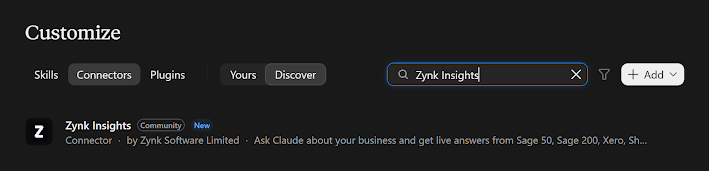
- In Claude, open Customise → Connectors → Discover.
-
Search for Zynk Insights, open it and press Connect to Claude.
-
The button changes to Connected. If you aren't already signed in to Zynk Insights in this browser, a sign-in window opens first: sign in with your Zynk Insights account.
If you're asked to sign in, enter the email address you use for Zynk Insights and press Continue.
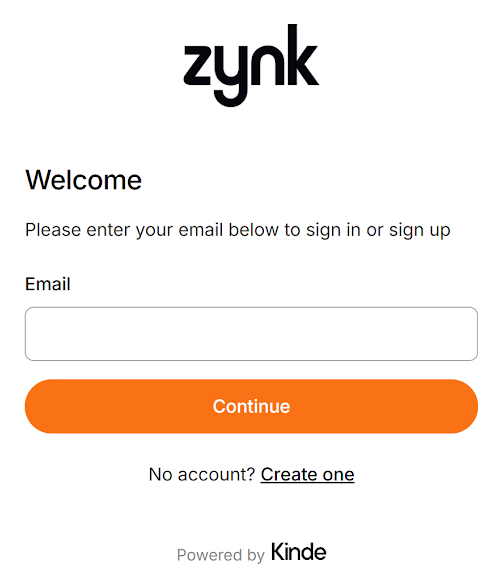
Your Zynk Insights sign-in tells Zynk Insights which account the connector belongs to, so Claude only sees the companies you've been granted.
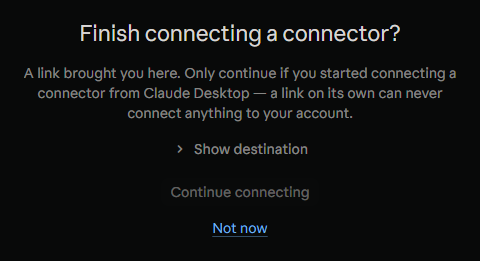
In Claude Desktop, your browser opens a Finish connecting a connector? page before the connection completes. Press Continue connecting.
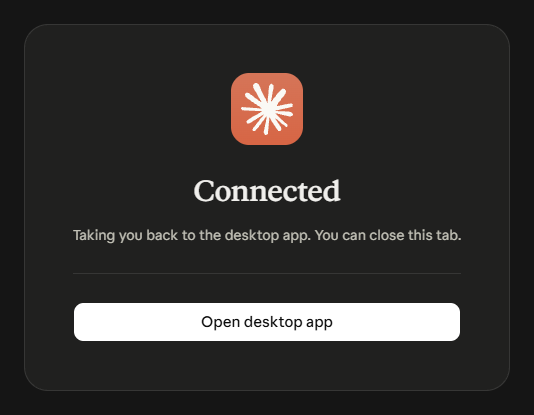
When it's done, the page shows Connected and takes you back to Claude Desktop. You can close the browser tab, or press Open desktop app if Claude Desktop doesn't come to the front.
To check it's connected, open Customise → Connectors → Yours in Claude. Zynk Insights should be listed there.
Using Zynk Insights in a Conversation
- Start a new conversation.
- Open the tools menu (the + or connectors button under the message box) and make sure Zynk Insights is switched on.
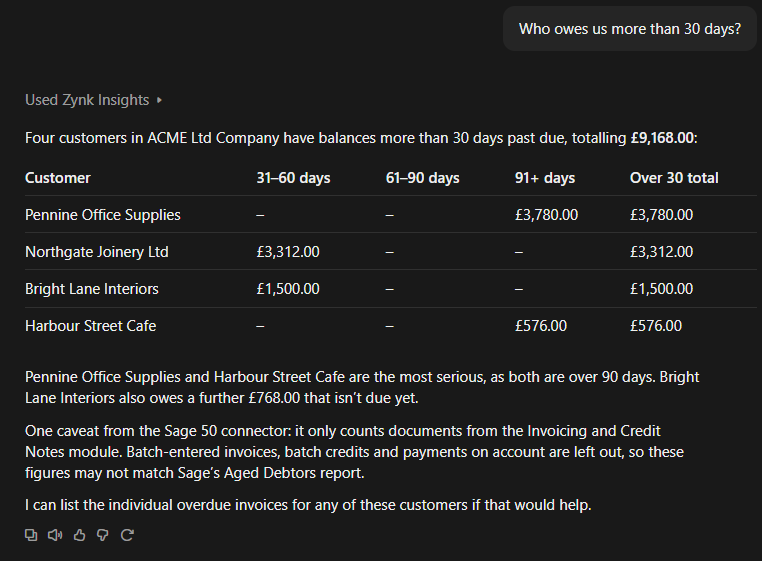
- Ask a question, for example "Who owes us more than 30 days?"
The first time Claude uses a tool it may ask your permission. Choose Allow always to stop being asked for read-only Zynk Insights tools.
Troubleshooting
- "Connection has expired" — disconnect and reconnect Zynk Insights in Customise → Connectors → Yours.
- Zynk Insights isn't available to connect — on Team and Enterprise plans, ask an Owner to allow it for your organisation.
- Claude connects but has no data — check a system is connected. For Sage 50, check the gateway is online and the Sage 50 company is set up.
- No tools appear — check you have been granted at least one Company, then disconnect and reconnect.
- A new connection isn't showing — after adding a Connection in the portal, disconnect and reconnect so Claude refreshes its list of tools.
See Troubleshooting for more.