Connecting to Acumatica
There are two steps involved in connecting Zynk to your Acumatica account. Firstly, you will need to create a connected application within Acumatica. Secondly, you will need to use the details from your connected application to set up a connection within Zynk. Both steps are outlined in the sections below.
Setting Up A Connected Application
Within Acumatica, go to Integration > Connected Applications, then add a new connected application. The settings should be configured as follows:
- Client ID - This will be generated automatically by Acumatica when saving the connected application.
- Client Name - This can be a name of your choice, e.g. 'Zynk Workflow'.
- Active - Ensure this option is ticked.
- Flow - Ensure this is set to 'Authorization Code'.
- Refresh Token - Ensure the mode is set to 'Sliding Expiration'. The lifetime can be configured as you require, but please note that you will need to periodically re-authenticate your connection in Zynk if you don't allow an infinite lifetime. We recommend choosing infinite to prevent downtime for the integration.
- Secrets - Click the 'Add Shared Secret' button, and enter a description of your choice, e.g. 'Zynk Workflow'. Be sure to take a copy of the value, as it will be needed later.
- Redirect URIs - Click the '+' button, and enter
https://zynk.com/. The value must be entered exactly as shown here.
Once configured, ensure your connected application is saved. Be sure to take a copy of the generated client ID, as it will be needed later.
Setting Up A Connection
Within Zynk, you will need to create a connection of the type 'Acumatica' via the Connection Manager. You will see a screen like the one below, requesting your Acumatica details:
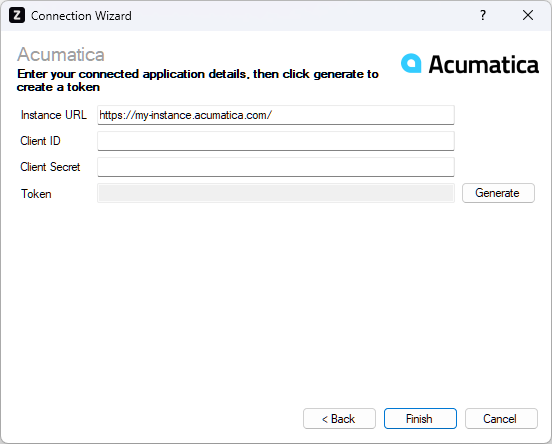
Enter your Acumatica details as described below, then click 'Finish' to create the connection.
Instance URL
Required
Enter the URL of your Acumatica instance, e.g. https://my-company.acumatica.com/. This can be seen in your web browser.
Client ID
Required
Enter the client ID that was generated by Acumatica for your connected application.
Client Secret
Required
Enter the secret that was generated by Acumatica for your connected application.
Token
Required
Click the 'Generate' button to log into Acumatica, and authorise the connection. Upon successful authorisation, Zynk will automatically generate a token that will grant access to Acumatica.